Best 3D Modeling Software in 2026: Free and Paid Options Compared
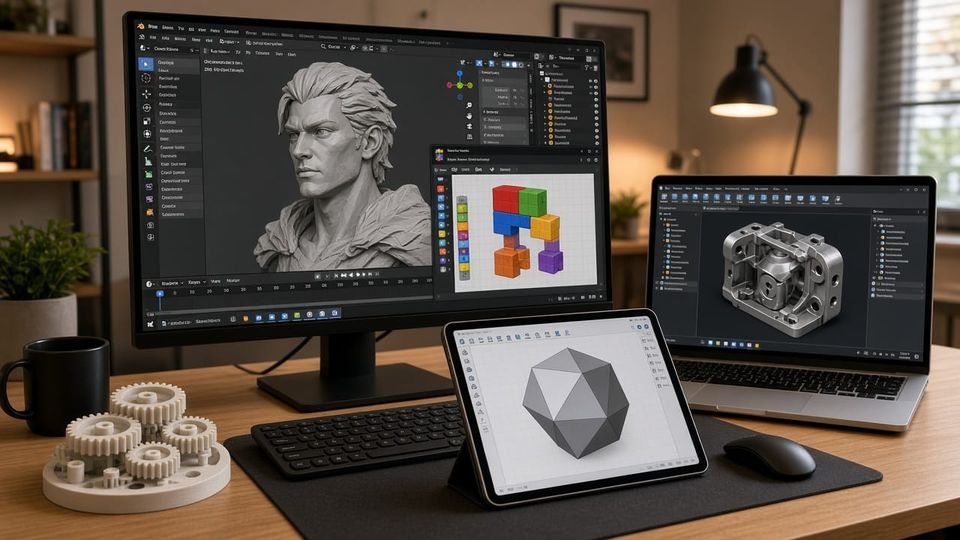
Choosing your first 3D modeling software feels overwhelming because there are dozens of options, and every forum has a different opinion. Some people swear by Blender. Others say Fusion 360 is the only real choice. Meanwhile, someone on Reddit insists you should just use Tinkercad and move on.
The truth is that the best 3D modeling software depends entirely on what you want to make. A tool that is perfect for sculpting fantasy characters is terrible for designing precise mechanical parts, and vice versa. A free browser tool that works great for simple shapes will frustrate you the moment you need parametric dimensions.
This guide organizes the most popular 3D modeling programs by what they are actually good at, so you can pick the right tool in minutes instead of spending weeks trying software that was never meant for your use case. Every recommendation includes whether it works for 3D printing, because if you are reading this on a 3D printing site, that matters.
Quick Pick: Which Software Should You Start With?
If you want a fast answer, here is the short version.
What You Want to Do | Best Free Option | Best Paid Option |
|---|---|---|
Simple shapes, quick projects, total beginner | Tinkercad (browser) | Not needed |
Mechanical parts, precise measurements | FreeCAD | Fusion 360 (free for personal use) |
Characters, sculptures, organic shapes | Blender | ZBrush ($40/mo) |
Quick model from an idea, no 3D skills | Meshy AI (free tier) | Meshy Pro ($20/mo) |
Design on iPad or tablet | Tinkercad (browser) | Shapr3D ($25/mo) or Nomad Sculpt ($15 one-time) |
Edit or fix existing STL files | Meshmixer | Bambu Studio (free, basic edits) |
Architecture and interiors | SketchUp Free (browser) | SketchUp Pro ($30/mo) |
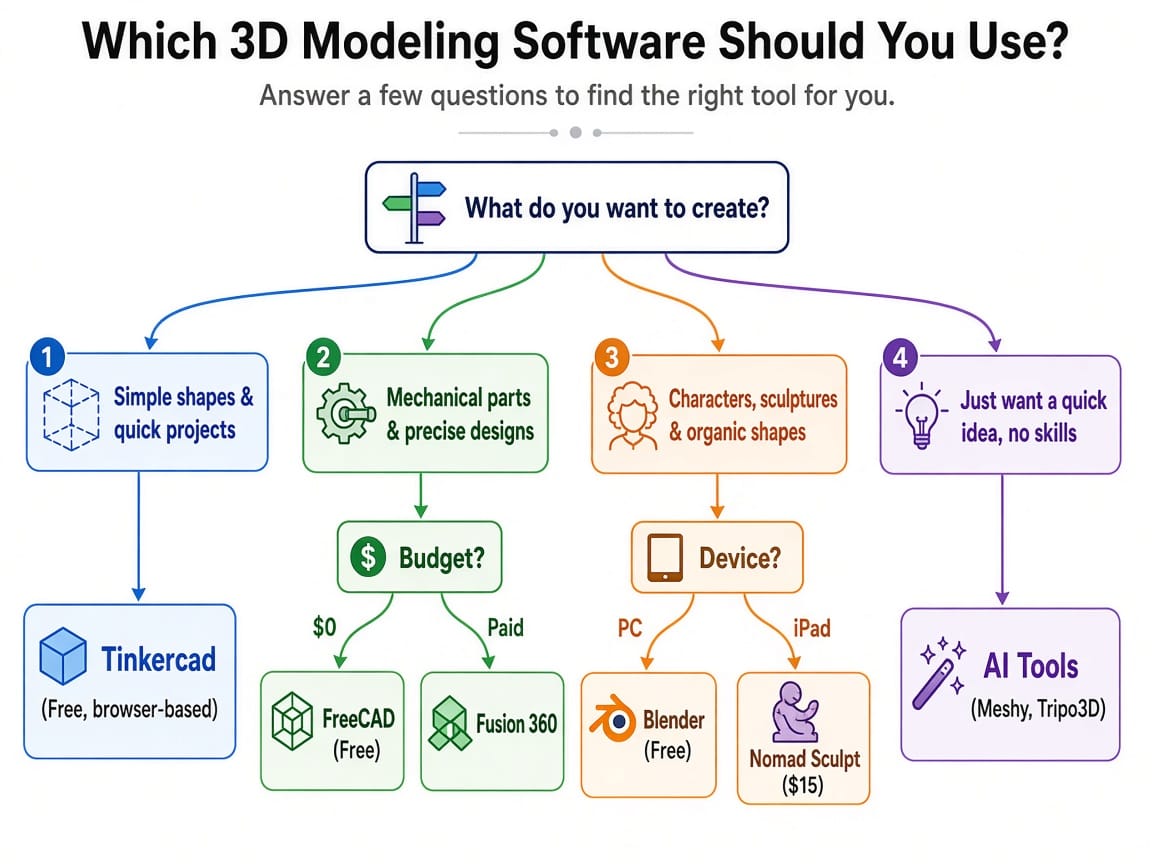
Still not sure? Use the decision flowchart below.
Best Free 3D Modeling Software
You do not need to spend money to create 3D models. The free options in 2026 are genuinely powerful, and most beginners will never outgrow them for hobby use.
Tinkercad: Best for Absolute Beginners
Price: Free Platform: Browser (works on any device) 3D Print Ready: Yes, direct STL and OBJ export Learning Time: 30 minutes to first model
Tinkercad is where most people should start if they have never touched 3D design software before. You drag and drop primitive shapes (cubes, cylinders, spheres) onto a workspace, resize them, combine them, and subtract them from each other. That is essentially the entire interface. There are no menus with 200 options, no hidden features, no confusing toolbars.
I still use Tinkercad for quick functional prints: cable clips, wall hooks, custom brackets, and simple enclosures. It exports directly to STL and the files are ready for slicing without any cleanup. For learning how to create 3D models from scratch, Tinkercad is the fastest path from zero to a printable object.
Limitations: No parametric dimensions (you cannot go back and change a measurement after building on top of it), no curved surface modeling, no sculpting tools. Once you need precision engineering or organic shapes, you will outgrow it.
Best for: First-time 3D modelers, kids, educators, quick functional prints, people who just want to get something printed today.
Blender: Best Free Professional Tool
Price: Free and open source Platform: Windows, Mac, Linux 3D Print Ready: Yes, STL/OBJ/3MF export (may need mesh cleanup) Learning Time: 1 to 4 weeks for basics
Blender is the most capable free 3D modeling software available. It handles sculpting, polygon modeling, animation, rendering, and more. Professional studios use it for movie VFX. The 3D printing community uses it for character models, figurines, terrain, and any organic shape that would be impossible in a CAD tool.
The trade-off is the learning curve. Blender's interface is dense with features, and the keyboard shortcuts take time to internalize. But once you get past the first week of confusion, it becomes incredibly productive. The sculpting mode is particularly useful for 3D printing because you can push and pull virtual clay to create shapes that feel natural rather than geometric.
Blender exports to STL and OBJ, but the meshes sometimes need repair before printing (non-manifold edges, holes, inverted normals). The built-in 3D Print Toolbox add-on checks for these issues and can fix most of them automatically.
Limitations: Overkill for simple shapes. If you just want a box with rounded corners, using Blender is like driving a semi truck to the grocery store. It also lacks parametric modeling (you cannot type exact dimensions and build relationships between features the way CAD software does).
Best for: Character sculptors, figurine makers, terrain builders, artists, anyone who wants maximum creative freedom at zero cost.
FreeCAD: Best Free Parametric CAD
Price: Free and open source Platform: Windows, Mac, Linux 3D Print Ready: Yes, STL export with mesh settings control Learning Time: 1 to 2 weeks for basics
FreeCAD is the best free 3D modeling software for beginners who want to design functional, dimensionally precise parts. It is a parametric modeler, which means you define shapes with exact measurements and can go back and change any dimension later without rebuilding the model. If you are designing a bracket that needs to be exactly 42.5mm wide with 3mm mounting holes spaced 25mm apart, FreeCAD is your tool.
Is FreeCAD actually free? Yes, completely. No trial period, no feature restrictions, no watermarks. It is open source and community-developed. The recent 1.0 release improved stability and usability significantly compared to older versions.
FreeCAD exports to STL for printing and also works with STEP files for exchanging designs with other CAD programs. The Part Design workbench follows a sketch-then-extrude workflow that is similar to SolidWorks and Fusion 360, so skills transfer if you move to a commercial tool later.
Limitations: The interface feels less polished than Fusion 360. Some advanced features (like complex surface modeling) are still maturing. Occasional stability issues on complex models, though the 1.0 release improved this substantially.
Best for: Functional parts, enclosures, brackets, mechanical designs, anyone who needs precise dimensions and free software.
Meshmixer: Best for Editing Existing Models
Price: Free Platform: Windows, Mac 3D Print Ready: Yes, direct STL export with repair tools Learning Time: 1 to 2 hours for basic operations
Meshmixer is not a modeling tool in the traditional sense. It is a mesh editor designed specifically for working with existing 3D models. You use it to combine models, cut them apart, smooth surfaces, add supports, hollow prints for resin, and fix broken meshes.
If you download a model from MakerWorld or Printables and need to modify it before printing, Meshmixer is often the fastest option. It handles tasks that are awkward in full CAD programs: merging two STL files, adding a flat base to a scan, filling holes in a mesh, or smoothing out rough surfaces. For more editing options, see our full guide to STL editors.
Limitations: Not meant for creating models from scratch. The sculpting tools exist but are basic compared to Blender or ZBrush.
Best for: Editing downloaded models, combining STL files, repairing broken meshes, hollowing models for resin printing.
OpenSCAD: Best for Code-Based Design
Price: Free and open source Platform: Windows, Mac, Linux 3D Print Ready: Yes, direct STL export Learning Time: 1 to 2 weeks (programming experience helps)
OpenSCAD is unique: you write code to generate 3D models. Instead of clicking and dragging, you type commands like cylinder(h=20, r=5) and difference() to create and combine shapes. This sounds bizarre if you are used to visual tools, but it is incredibly powerful for parametric designs where you want to change one variable and have the entire model update automatically.
Many of the parametric customizers on Thingiverse and Printables run on OpenSCAD scripts. If you want to create designs that other people can customize (enter their own dimensions, text, or options), OpenSCAD is the standard tool.
Limitations: No visual feedback while building. You write code, hit render, and see the result. Not intuitive for visual thinkers or people without coding experience.
Best for: Programmers, parametric designs, customizable models, batch generation of variations.
Best Paid 3D Modeling Software
These tools cost money (or have significant free tiers) and offer features that justify the investment for serious users.
Fusion 360: Best Overall for 3D Printing
Price: Free for personal use (with limitations), $70/month for commercial Platform: Windows, Mac (cloud-based) 3D Print Ready: Excellent, direct STL/3MF/STEP export Learning Time: 1 to 3 weeks for basics
Fusion 360 is what I recommend most often for people who want one tool that handles everything from precise mechanical design to organic surface modeling to assembly simulation. It combines parametric CAD (like FreeCAD) with sculpting tools (like a simplified Blender) in a single interface.
The free personal license is generous enough for most hobbyists. You get full modeling capabilities, STL/3MF export, and 10 active documents. The main limitations are on advanced simulation, CAM toolpaths, and team collaboration features that hobbyists rarely need.
For 3D printing specifically, Fusion 360 is hard to beat. The model-to-print workflow is seamless: design your part, click "3D Print," choose STL or 3MF, and the export is ready for your slicer. It even has a built-in mesh analysis tool that checks for print issues.
Limitations: Requires an internet connection for many features (cloud-based). The free license terms change periodically. The interface can feel cluttered for simple tasks.
Best for: Anyone who wants one 3D design software for both precise parts and freeform shapes. The best all-rounder for 3D printing.
Shapr3D: Best for iPad and Touch Devices
Price: Free tier (limited exports), $25/month for full version Platform: iPad, Mac, Windows 3D Print Ready: Yes, STL/STEP export Learning Time: A few hours
Shapr3D was built from the ground up for touch input on iPad. If you have an iPad with an Apple Pencil, this is the most intuitive CAD experience available. You sketch shapes with the pencil, extrude them with a finger pinch, and fillet edges with a tap. The gesture-based workflow feels natural in a way that mouse-based CAD programs never do.
Is Shapr3D worth the money? For iPad users who design regularly, yes. The productivity gain from designing on a couch, in a cafe, or on a commute is real. For people who only design occasionally, the free tier with limited exports may be enough, or Tinkercad in a browser works fine on iPad too.
Limitations: The subscription cost adds up ($300/year). Desktop CAD users may find the touch workflow different from what they are used to.
Best for: iPad owners, designers who want portability, people who find mouse-based CAD frustrating.
ZBrush: Best for Sculpting Characters and Miniatures
Price: $40/month or perpetual license available Platform: Windows, Mac, iPad (ZBrush for iPad is free with limitations) 3D Print Ready: Yes, STL/OBJ export (may need decimation for very high-poly models) Learning Time: 2 to 4 weeks
ZBrush is the industry standard for digital sculpting. If you want to create detailed characters, tabletop miniatures, figurines, or any organic shape with fine surface detail, ZBrush handles millions of polygons without breaking a sweat. The brush-based sculpting feels like working with real clay.
ZBrush for iPad is a surprisingly capable free version that gives you core sculpting tools on a touch device. It is the best option for sculpting miniatures and figurines on the go.
Limitations: Not suitable for mechanical design or precise measurements. The interface is notoriously unconventional and takes time to learn. High-poly models need to be decimated (polygon count reduced) before 3D printing.
Best for: Miniature sculptors, character artists, figurine designers, tabletop gaming model creators.
Onshape: Best Free Browser-Based CAD
Price: Free for public projects, paid for private Platform: Browser (any device), mobile apps 3D Print Ready: Yes, STL/STEP export Learning Time: 1 to 2 weeks
Onshape is a professional parametric CAD tool that runs entirely in a browser. No installation required. The free tier requires your designs to be publicly visible (which is fine for hobby projects and sharing with the community), while the paid version adds private documents.
The interface and workflow are very similar to SolidWorks, making it a good training ground if you plan to use SolidWorks professionally. It handles assemblies, configurations, and version history better than most free alternatives.
Limitations: Free tier makes all designs public. Requires internet connection. The mobile app is functional but limited for complex work.
Best for: Engineers in training, collaborative projects, people who want professional CAD without installing software.
AI 3D Modeling Tools: The New Way to Create Models
This is the biggest shift in 3D modeling since Blender went free. In 2026, AI tools can generate 3D models from text descriptions, images, or rough sketches. They are not perfect, but they are already useful for specific tasks.
Text-to-3D: Type a Description, Get a Model
How it works: You type something like "a medieval castle tower with a spiral staircase" and the AI generates a 3D model in 30 seconds to 2 minutes.
Top tools:
- Meshy (meshy.ai): The most popular text-to-3D tool in the maker community. Free tier gives 5 generations per day. The output quality has improved dramatically in 2026.
- Tripo3D (tripo3d.ai): Fast generation with good topology. Free tier available.
- Luma AI Genie: Creates models from text with multiple style options.
Can you 3D print AI-generated models? Yes, but with caveats. AI models often have non-manifold geometry, internal artifacts, and messy topology. You will usually need to run the model through Meshmixer or Blender to clean it up before the slicer accepts it. For decorative and organic prints, the cleanup is quick. For functional parts with precise dimensions, AI models are not reliable.
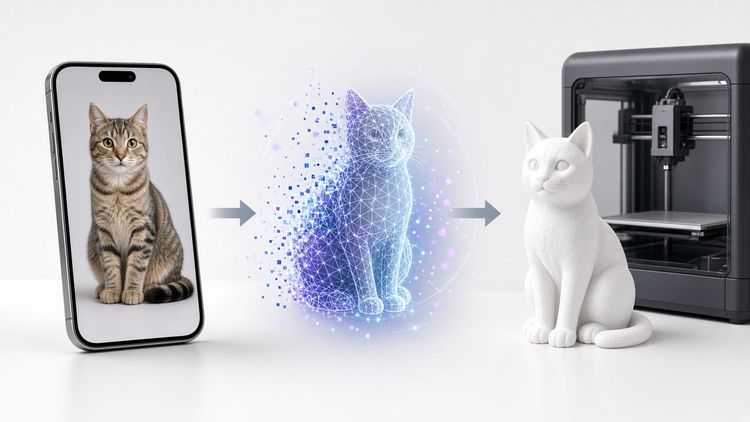
Image-to-3D: Turn a Photo into a Printable Model
Take a photo of an object with your phone, upload it to an AI tool, and get a 3D model back. This works surprisingly well for simple objects with clear shapes. It struggles with complex geometry, thin features, and highly reflective surfaces.
Best for: Recreating real objects, generating reference models, quick prototyping of organic shapes.
Is 3D Modeling Getting Replaced by AI?
Not yet. AI tools are powerful for generating starting points, concept models, and decorative objects. But they cannot produce dimensionally accurate mechanical parts, create models with specific tolerances, or design assemblies where components need to fit together precisely.
The most productive workflow in 2026 combines AI with traditional tools: use AI to generate a rough shape quickly, then refine it in Blender, Fusion 360, or Meshmixer. This hybrid approach is faster than starting from scratch but more controlled than relying on AI alone.
Think of AI as a creative shortcut, not a replacement. It is excellent at answering "what if this looked like..." but cannot answer "make this exactly 42.5mm with a 3mm tolerance."
Best 3D Modeling Software for 3D Printing Specifically
If your primary goal is making models to 3D print, here are the factors that matter most and how each tool scores.
Software | STL Export | 3MF Export | Manifold Check | Print Settings Integration | Overall Print Readiness |
|---|---|---|---|---|---|
Tinkercad | Direct | No | Auto-clean | No | Excellent |
Fusion 360 | Direct | Direct | Built-in analysis | No | Excellent |
FreeCAD | Direct | Via add-on | External tools | No | Good |
Blender | Direct | Via add-on | 3D Print Toolbox | No | Good (needs cleanup) |
Meshmixer | Direct | No | Built-in repair | No | Excellent (repair focus) |
Shapr3D | Direct | No | No | No | Good |
OpenSCAD | Direct | No | Usually clean | No | Good |
AI Tools | Varies | No | Usually messy | No | Fair (needs cleanup) |
Key considerations for 3D printing:
Watertight meshes. A 3D model needs to be "watertight" (no holes, no flipped faces, no internal geometry) for a slicer to process it correctly. Tinkercad and Fusion 360 produce watertight meshes by default. Blender and AI tools often need manual fixing.
File format. STL is the universal format that every slicer accepts. 3MF is newer and preserves color, material, and print settings. Fusion 360 exports both natively. Most other tools export STL at minimum.
Dimensional accuracy. If you are designing parts that need to fit together or mount onto existing objects, you need a parametric tool (Fusion 360, FreeCAD, Shapr3D, Onshape). Mesh-based tools (Blender, ZBrush) let you sculpt by eye but do not guarantee precise measurements.
Your slicer can do basic editing too. Bambu Studio, OrcaSlicer, and PrusaSlicer all include basic model manipulation: scaling, rotating, cutting models in half, adding text to surfaces, and arranging multiple models on the build plate. For simple modifications to downloaded models, you may not need a separate editor at all.
Best 3D Modeling Software for Mobile and iPad
Designing 3D models on a phone or tablet used to be impractical. In 2026, several tools make it genuinely productive.
Shapr3D (iPad, $25/month or free tier) The gold standard for CAD on iPad. Full parametric modeling with Apple Pencil support. Exports STL and STEP. If you own an iPad Pro or Air and design regularly, this is worth the subscription.
Nomad Sculpt (iPad and Android, $15 one-time) A remarkably capable sculpting app for tablets. Handles millions of polygons, includes texture painting, and exports to STL and OBJ. At $15 with no subscription, it is the best value in mobile sculpting. Perfect for creating figurines, characters, and organic shapes to 3D print.
Tinkercad (Any device, free) Runs in a browser, so it works on any tablet or even a phone (though the small screen is limiting). The simplest path to creating basic 3D models on a mobile device.
ZBrush for iPad (iPad, free with limitations) Core ZBrush sculpting tools on iPad at no cost. More powerful than Nomad Sculpt for complex sculpts, but the learning curve is steeper.
Onshape (Any device, free for public projects) Full CAD in a browser, with dedicated mobile apps for iOS and Android. The mobile experience is functional for reviewing and light editing but not ideal for complex modeling.
How to Choose: A Beginner's Decision Framework
If the quick pick table and flowchart above were not specific enough, here is a more detailed decision process.
Question 1: What do you want to create?
- Simple geometric shapes (boxes, cylinders, brackets) → Tinkercad or FreeCAD
- Precise mechanical parts with exact dimensions → Fusion 360 or FreeCAD
- Characters, figurines, organic sculptures → Blender or ZBrush
- Quick concept models without learning a tool → AI tools (Meshy)
- Modifications to existing downloaded models → Meshmixer
Question 2: How much are you willing to spend?
- $0 → Tinkercad, Blender, FreeCAD, Meshmixer, OpenSCAD (all completely free)
- $0 but want professional quality → Fusion 360 free personal license
- $15 to $25/month → Shapr3D (iPad CAD), ZBrush (sculpting)
- $40+/month → Full commercial licenses (rarely needed for hobby use)
Question 3: What device do you have?
- Windows PC → Everything works
- Mac → Everything except a few Windows-only tools
- iPad → Shapr3D, Nomad Sculpt, Tinkercad (browser), ZBrush for iPad
- Phone → Tinkercad (browser), Onshape (app), basic AI tools
- Chromebook → Tinkercad (browser), Onshape (browser)
Question 4: How much time will you invest in learning?
- 30 minutes → Tinkercad
- A few hours → Shapr3D, Meshmixer
- 1 to 2 weeks → Fusion 360, FreeCAD, Onshape
- 1 month+ → Blender, ZBrush, OpenSCAD
The easy 3D modeling software options (Tinkercad, Shapr3D) get you creating quickly but have lower ceilings. The harder options (Blender, ZBrush) take longer to learn but have virtually no ceiling on what you can create. Most 3D modeling software for beginners falls in between, with tools like Fusion 360 offering a reasonable learning curve and extensive capability.
My personal recommendation: start with Tinkercad to get comfortable with 3D thinking, then move to Fusion 360 (for mechanical) or Blender (for artistic) once you feel limited. This two-step path is the most common progression I see in the 3D printing community, and it works.
My Software Journey and What I Actually Use
I started with Tinkercad three years ago and designed my first printable objects within an hour. Simple stuff: a cable clip, a wall hook, a custom bracket for a shelf. Tinkercad was perfect for that.
After a few months, I hit Tinkercad's limits when I wanted to design a snap-fit enclosure with specific tolerances. Moving to Fusion 360 was a week-long learning investment, but once I understood the sketch-extrude-modify workflow, my design capability jumped dramatically. I now design all my functional parts in Fusion 360.
For artistic and organic models, I use Blender. It took me about two weeks of following YouTube tutorials before I could sculpt anything decent, but now I can create custom figurines and decorative items that would be impossible in a CAD tool.
Recently, I have been experimenting with Meshy for AI-generated models. The quality is hit or miss, but for quick decorative prints and concept exploration, it saves hours of manual modeling. I generated a dragon sculpture from a text prompt, cleaned it up in Meshmixer (about 15 minutes of fixing non-manifold edges), and the print came out looking better than anything I could sculpt manually in Blender.
The tools complement each other. No single best 3D modeling software exists for every situation. The real skill is knowing which tool to reach for when.
FAQ
Which 3D software is best for modeling?
It depends on what you are modeling. For precise mechanical parts and functional 3D prints, Fusion 360 is the best overall choice because it combines parametric design with organic modeling in one tool, with excellent 3D print export. For artistic sculpting and characters, Blender is the best free option and ZBrush is the best paid option. For absolute beginners who want to start creating today with zero learning curve, Tinkercad is the fastest path from idea to printable model. For iPad users, Shapr3D (CAD) and Nomad Sculpt (sculpting) are the best options. Most people in the 3D printing community end up using 2 to 3 tools depending on the project.
Is FreeCAD actually free?
Yes. FreeCAD is 100% free and open source with no trial period, no feature restrictions, no watermarks, and no subscription. It is developed by a community of volunteers and funded by donations. You can use it for personal and commercial projects without any cost. The recent FreeCAD 1.0 release significantly improved stability and usability, making it a viable alternative to paid CAD software like Fusion 360 for many users. The main trade-off compared to Fusion 360 is a less polished interface and a smaller ecosystem of tutorials and community resources.
Is Shapr3D worth the money?
For iPad users who design 3D models regularly, yes. Shapr3D's touch and Apple Pencil workflow is genuinely faster and more intuitive than using a mouse-based CAD program for many tasks. The $25/month subscription ($300/year) is significant, but if you design several models per week and value the portability of working on a tablet, the productivity gain justifies the cost. For people who design occasionally (a few times per month), the free tier with limited exports may be enough, or Tinkercad in a browser on iPad is a capable free alternative for simpler designs.
Is 3D modeling getting replaced by AI?
Not in 2026, but AI is becoming a powerful supplement to traditional modeling. AI tools like Meshy, Tripo3D, and Luma AI can generate 3D models from text descriptions or images in seconds. These models work well for decorative prints, concept prototyping, and organic shapes. However, AI-generated models typically have messy topology, lack dimensional precision, and cannot produce parts with specific tolerances or mechanical constraints. For functional engineering parts, assemblies, and anything requiring exact measurements, human-driven CAD tools remain essential. The most effective workflow combines AI for rapid ideation with traditional tools for refinement and precision.

Comments ()