What Is an STL File? The 3D Printing File Format Explained
If you've ever downloaded a 3D model to print, chances are it came as an STL file. It's the most widely used format in 3D printing, supported by every slicer and virtually every 3D printer on the market.
But what is an STL file, exactly? What's inside it, and why has this format from 1987 remained the default for so long? This guide breaks it all down in plain language.
What Does STL Stand For?
The answer depends on who you ask. The most common explanation is Stereolithography, named after the 3D printing technology it was originally created for. You'll also see people say it stands for Standard Triangle Language or Standard Tessellation Language.
The format was developed by 3D Systems in 1987 for their early stereolithography machines. Despite being nearly four decades old, the STL file meaning hasn't changed: it's a simple way to describe the outer surface of a 3D object using triangles.
The STL file format caught on because of its simplicity. Any CAD program can export one, any slicer can read one, and there's nothing proprietary about how it works.
How STL Files Work (The Triangle Mesh)
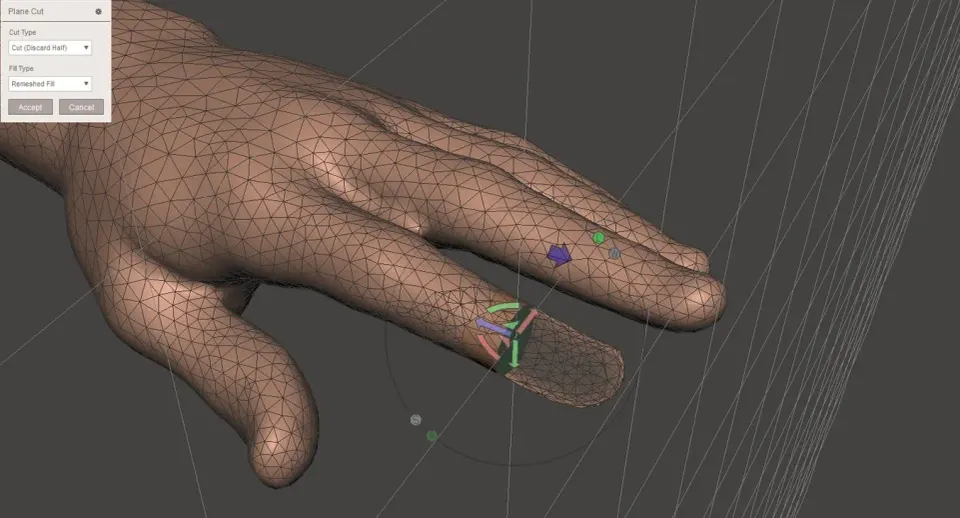
An STL file describes the surface of a 3D object by breaking it into thousands of tiny triangles. Think of it like wrapping a sculpture in small mosaic tiles. Each triangle is defined by three corner points (vertices) and a direction indicator (normal vector) that tells software which side faces outward.
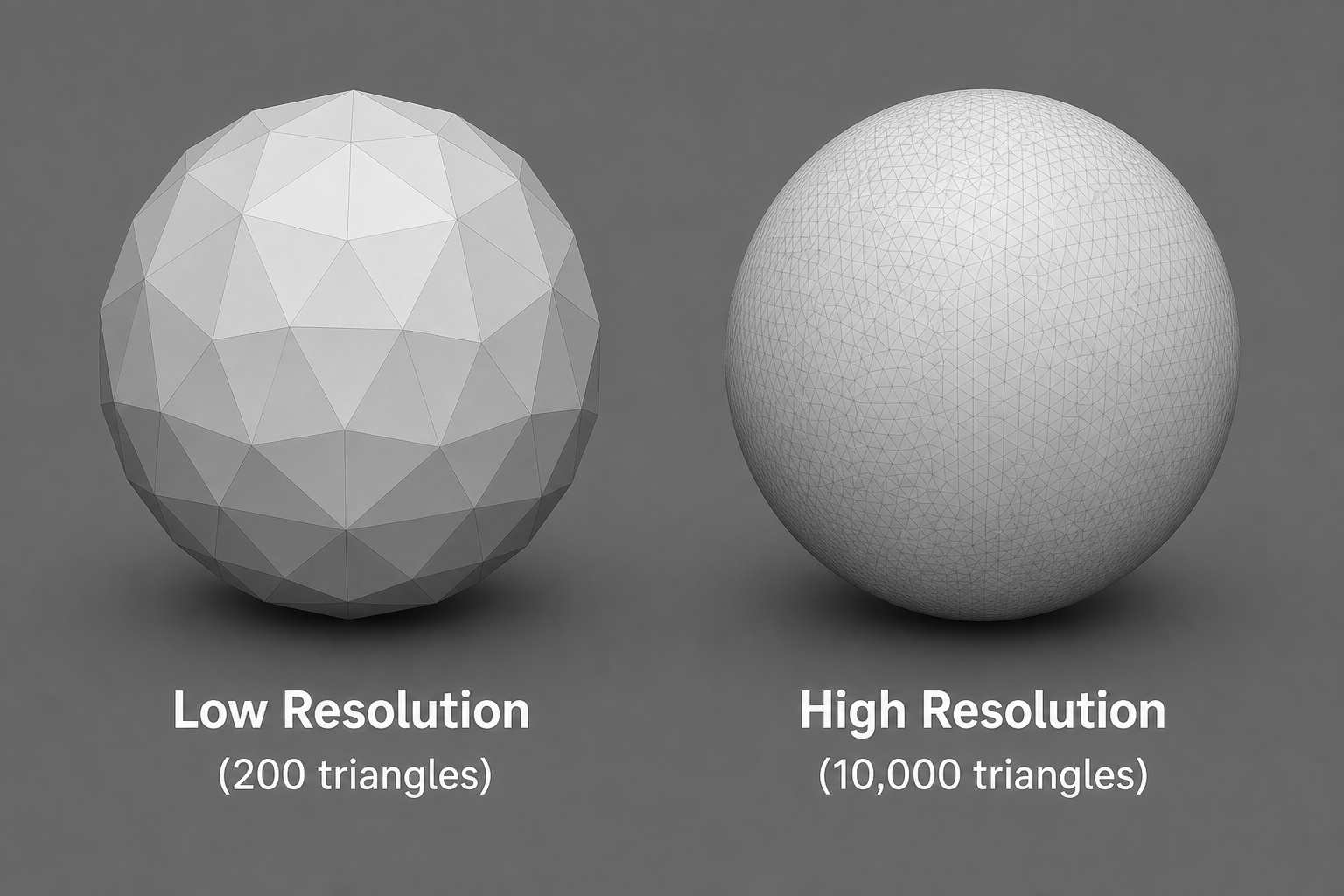
The key tradeoff: more triangles means smoother surfaces and finer detail, but also a larger file. A simple cube needs just 12 triangles. A detailed figurine might use hundreds of thousands.
Here's what an STL file does NOT contain:
- No color or texture information
- No material assignments
- No print settings (layer height, infill, speed)
- No scale information (units are assumed, not specified)
- No multi-part assembly data
An STL is purely geometry. Everything else, from materials to print speed, gets decided later in your slicer software.
What Are STL Files Used For?
The primary use for STL files is 3D printing. When you download a model from a platform and load it into your slicer, you're almost always working with an STL. The workflow looks like this:
- Design a model in CAD software (or download one)
- Export as STL (the universal exchange format)
- Import into your slicer (Bambu Studio, Cura, PrusaSlicer)
- Slice into G-code (the instructions your printer follows)
STL files for 3D printing work across every printer technology: FDM, resin (SLA/MSLA/DLP), and powder-based (SLS). The file itself is printer-agnostic.
Beyond 3D printing, STL files are also used in CNC machining, medical imaging, and 3D visualization. But for most people reading this, it's about getting models onto a print bed. For a broader look at how STL fits alongside other options, see our guide to 3D printer file types.
How to Open an STL File
Almost every 3D printing tool opens STL files natively. Here's what to use depending on your goal:
To slice and print:
- Bambu Studio
- Cura
- PrusaSlicer / OrcaSlicer
- ChiTuBox (for resin printers)
To edit the mesh:
- Meshmixer (free, great for repairs and modifications)
- Blender (free, powerful but steeper learning curve)
- Fusion 360 (can convert mesh to solid for parametric editing)
- FreeCAD
To just view the file quickly:
- Microsoft 3D Builder (pre-installed on Windows 10/11)
- MeshLab (free, cross-platform)
- 3dviewer.net (browser-based, no install needed)
If all you want to do is check what a file looks like before printing, 3D Builder or the online viewer is your fastest option.
How to Create an STL File
There are two main paths to creating stereolithography files:
Design from scratch in CAD
Most CAD software can export an STL directly:
- TinkerCAD (free, browser-based, beginner-friendly): Design your model, click Export, select .STL
- Fusion 360 (free for personal use): File > Export > select STL format
- FreeCAD (free, open-source): File > Export > choose .stl
- SOLIDWORKS: File > Save As > STL
Export quality settings matter
When you export an STL, your software asks about resolution. This is where STL images (the visual quality of the mesh) get determined. The two key settings are:
- Chord Tolerance (or Deviation): How far the triangles can deviate from the true curved surface. Lower = more accurate = more triangles.
- Angular Tolerance: Maximum angle between adjacent triangles. Lower = smoother curves.
Practical guidelines for 3D printing:
- Desktop FDM printing (0.2mm layers): Chord tolerance of 0.01-0.02mm is plenty
- Resin printing (0.05mm layers): Chord tolerance of 0.005-0.01mm for fine detail
- Going below 0.005mm adds file size without visible improvement
You don't need millions of triangles for a desktop print. Your printer's physical resolution is the bottleneck, not the STL.
3D scanning
You can also create an STL by scanning a physical object with a 3D scanner (or even photogrammetry apps on your phone). The scan produces a point cloud that gets converted into a triangle mesh and saved as STL.
Common STL File Problems (And How to Fix Them)
If your slicer shows warnings or your print comes out strange, the STL file itself might be broken. Here are the most common issues:
Non-manifold edges: An edge is shared by more than two triangles, or only one. This confuses slicers because they can't determine what's "inside" the model.
Holes in the mesh: Missing triangles leave gaps in the surface. The slicer doesn't know how to fill a layer when there's no defined boundary.
Inverted normals: Some triangles have their direction vectors pointing inward instead of outward. The slicer thinks those sections are inside-out.
Self-intersecting faces: Parts of the mesh pass through other parts of the same mesh, creating impossible geometry.
How to fix these:
- Bambu Studio / PrusaSlicer: Both have built-in auto-repair that fixes most issues silently on import
- Microsoft 3D Builder: Open the file and it will offer to repair automatically
- Meshmixer: Analysis > Inspector shows problem areas, and you can fix them individually
- MeshLab: Filters > Cleaning and Repairing offers detailed mesh surgery
Most of the time, just opening a broken STL in Bambu Studio or PrusaSlicer is enough. They auto-repair quietly in the background.
STL File Size: Why Some Files Are Huge
An STL with 100,000 triangles in binary format is roughly 5 MB. That's perfectly reasonable. But sometimes you'll download a file that's 200+ MB. Why?
Common causes of oversized STL files:
- Exported at unnecessarily high resolution (millions of triangles for a simple shape)
- ASCII format instead of binary (ASCII files are 5-10x larger for the same geometry)
- 3D scan data that hasn't been cleaned up (scans produce noisy, dense meshes)
What to do about it:
- Re-export from CAD with lower tolerance settings
- Convert ASCII to binary using MeshLab (Filters > Export as Binary STL)
- Use Meshmixer's "Reduce" tool to lower face count while preserving shape
- For desktop printing at 0.2mm layers, 50,000 to 500,000 faces is typically sufficient
A smaller file slices faster, transfers to your printer faster, and prints identically if the resolution still exceeds your printer's physical capability.
The Disadvantages of STL Files
STL has been the standard for decades, but it shows its age:
- No color or texture data. If you want multi-color prints, STL can't carry that information.
- No print settings. Layer height, speed, temperature, supports... none of it is stored.
- No material info. The file doesn't know if it should be printed in PLA or resin.
- No assembly support. Multi-part models need separate STL files for each piece.
- Mesh errors are common. The format doesn't enforce watertight geometry.
- No units. A model might be in millimeters or inches, and the file won't tell you which.
These limitations are exactly why the 3MF file format was created. 3MF stores geometry plus colors, materials, print settings, and thumbnails in a single package. If you've used Bambu Studio, you've already been working with 3MF without realizing it (it's the default project save format).
For downloading and printing single-color models, STL still works perfectly. But for sharing complete print-ready projects, 3MF is the better choice.
Where to Download STL Files for 3D Printing
Ready to find models to print? These platforms offer large libraries of STL files:
- Printables (printables.com): High quality, Prusa's platform, active community
- MakerWorld (makerworld.com): Bambu Lab's platform, many files include 3MF with settings
- Thingiverse (thingiverse.com): Largest archive, variable quality
- Thangs (thangs.com): Search engine across multiple platforms
- Cults3D (cults3d.com): Mix of free and paid designer models
For more sources, see our guide to free 3D print files and Thingiverse alternatives with better search and curation.
FAQ
What program will open a .STL file?
Any 3D printing slicer (Bambu Studio, Cura, PrusaSlicer, ChiTuBox) opens STL files natively. For quick viewing without slicing, Microsoft 3D Builder comes pre-installed on Windows, and MeshLab is a free cross-platform option. For editing, Meshmixer and Blender are both free and capable.
How do I create an STL file?
Design your model in any CAD software (TinkerCAD, Fusion 360, FreeCAD, SOLIDWORKS) and export it as .STL. Most programs have this under File > Export or File > Save As. Choose binary format for smaller file size, and set chord tolerance to 0.01-0.02mm for typical 3D printing needs.
What is the difference between CAD and STL files?
A CAD file (like .f3d, .step, or .sldprt) stores your design as parametric geometry: dimensions, constraints, and editable features. An STL file is a "frozen" version that only contains the final surface shape as triangles. You can't easily edit dimensions in an STL. Think of CAD as the editable recipe, and STL as the baked cake.
What are the disadvantages of STL files?
STL stores only surface geometry. No color, no texture, no materials, no print settings, no scale units. The format also doesn't guarantee error-free meshes, so broken files are common. For projects that need color or embedded settings, the newer 3MF format is a better option.
Looking for something to print? Browse our list of things to 3D print for project ideas across every skill level.

Comments ()