3D Printer File Types: Every Format Explained for Beginners
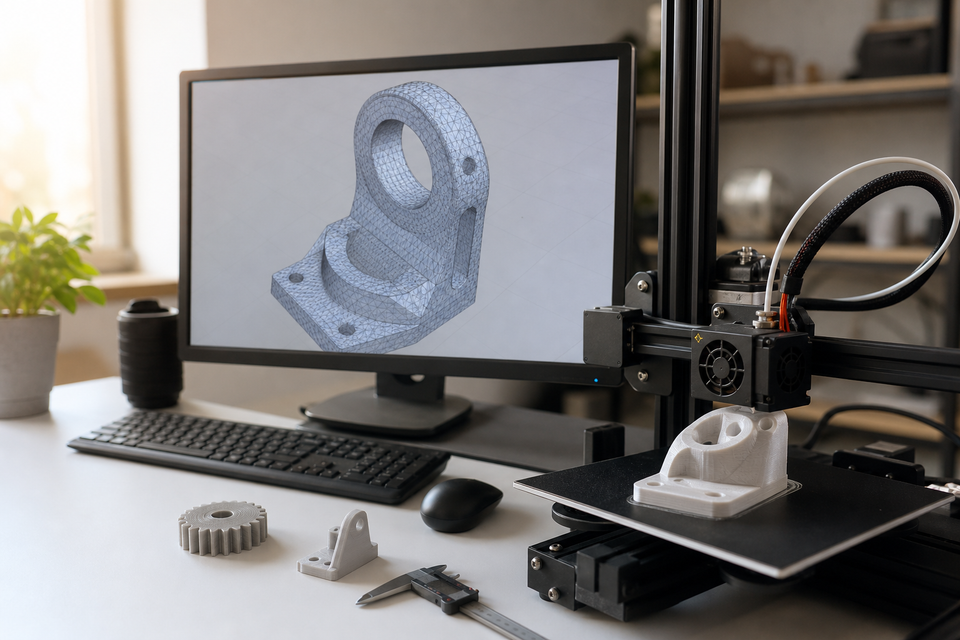
You found the perfect model online. You download it, open your slicer, and… nothing happens. Or worse — the file opens but your print comes out with weird holes, missing walls, or a surface that looks like a crumpled napkin.
Nine times out of ten, the problem is the file format.
There are over a dozen 3d printer file types floating around, and each one stores your model differently. Some keep only the shape. Others pack in color, materials, and even print settings. Some aren't meant for printing at all.
This guide cuts through the confusion. You'll learn what each 3d printer file format actually does, which one your specific printer uses, and — most importantly — which format you should pick when you have a choice.
How 3D Printer Files Work (The Big Picture)
Before diving into individual formats, here's the one thing most beginners get wrong: your printer doesn't read STL files. It reads G-code — a set of line-by-line movement instructions.
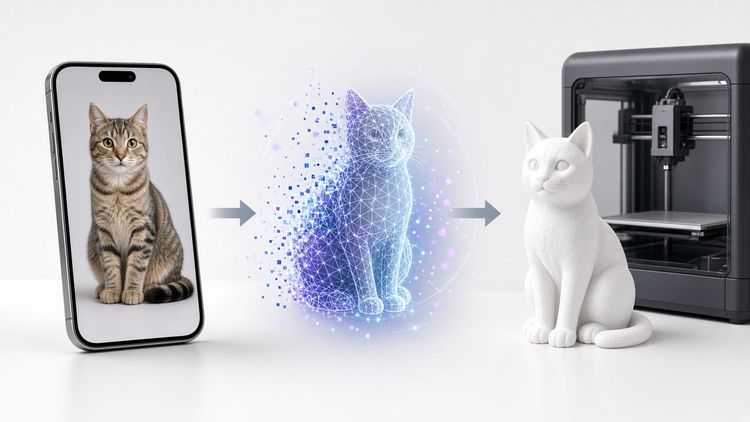
The file you download (STL, 3MF, OBJ) is a 3D model. Your slicer software converts that model into G-code. Then your printer follows the G-code to build the object layer by layer.
Here's the full journey:

Design or Download → 3D Model File (STL / 3MF / OBJ) → Slicer Software → G-code → Printer
Think of it like cooking: the 3D model file is the recipe, the slicer is the chef reading and interpreting that recipe, and the G-code is the exact sequence of actions — "move hand here, pour this much, heat to this temperature." Your printer just follows instructions.
So what are 3d printing files called? The model files are typically STL, 3MF, or OBJ. The machine instruction file is G-code. And what files do 3d printers use at the end? Always G-code (or a proprietary variant), generated by your slicer from whatever model format you fed it.
A Quick Note from Experience
I will be honest: when I started 3D printing, I spent way too long worrying about file formats. I read comparisons, debated STL vs 3MF in forums, and overthought every download. After printing hundreds of models across multiple printers, here is what I actually learned: for 99% of hobby printing, the format barely matters. STL works everywhere, 3MF is better when available, and you will never need to think about OBJ or STEP unless you get into multi-color printing or CAD modification.
The one situation where file format genuinely matters is multi-color printing with an AMS system. If you download a 3MF file from MakerWorld that has color data embedded, it "just works" when you open it in Bambu Studio. Try the same model as an STL and you lose all color assignments and have to manually paint them back. That single scenario is where 3MF saves real time. For single-color printing, download whichever format is available and move on.
The 6 3D Printer File Formats You'll Actually Encounter
There are dozens of 3d file formats in existence, but as a beginner, you only need to know six. Here they are, ranked by how often you'll run into them.
STL (Standard Tessellation Language)
What it stores: The surface of your model as thousands of tiny triangles — and nothing else. No color, no material info, no print settings.
Why it's everywhere: STL has been around since 1987. It was the first format designed for 3D printing, and every slicer, every printer, and every model-sharing site supports it. When someone says "download the STL," they're using it as shorthand for "download the 3D model."
Limitations:
- No color or texture data (single-color prints only)
- No unit information (a file could be in mm or inches — the slicer has to guess)
- Prone to errors: non-manifold edges, holes in the mesh, inverted triangles
- Larger file sizes compared to 3MF for the same geometry
Best for: Single-color FDM prints. Downloading models from Thingiverse, Printables, or MakerWorld. If you're printing in one color on a desktop printer, STL works fine.
The format in plain English: Imagine wrapping your object in tiny triangular tiles, like mosaic art. The stl format records only the position of each tile — nothing about what the tiles are made of or what color they are. That's all an STL file is: a list of triangles that describe a shape.
3MF (3D Manufacturing Format)
What it stores: Geometry, colors, materials, textures, print settings, units, and metadata — all in one compact ZIP-like package.
Why it's the future: The 3mf file format was designed in 2015 by Microsoft, HP, Autodesk, and others specifically to fix everything STL does wrong. It's smaller in file size, can't have the "wrong units" problem, supports multi-color and multi-material printing, and can even embed thumbnail previews.
Limitations:
- Not every old slicer or printer firmware supports it (though all major ones do now)
- Some model-sharing sites still default to STL uploads
Best for: Bambu Lab printers (Bambu Studio uses 3MF natively), PrusaSlicer workflows, multi-color prints, and any time you want to share a model with print settings included.
The format in plain English: If STL is a plain text file, 3MF is a fully-formatted document with images, fonts, and layout included. Everything the printer needs to know is inside one file. The 3mf file type is what STL would be if it were invented today.
OBJ (Wavefront Object)
What it stores: Polygon geometry plus texture coordinates and vertex colors. Usually comes as a pair: the .obj file (geometry) and a .mtl file (materials/colors), often with texture image files alongside.
Why people use it: OBJ comes from the 3D animation and game world. It's the go-to format when your model has color or texture information that needs to survive the transfer between software.
Limitations:
- Two-file system (lose the .mtl file and you lose all color data)
- Larger files than STL or 3MF for the same geometry
- Slower to process in slicers
Best for: Full-color 3D printing. Models exported from Blender, Maya, or ZBrush. Figurines and artistic models where color matters.
The format in plain English: OBJ is like an STL file that also remembers "this face should be red" and "this area should have a wood texture painted on." It's more detailed but also more cumbersome.
STEP (Standard for the Exchange of Product Data)
What it stores: Precise mathematical curves and surfaces — not triangles. Also stores units, tolerances, and assembly relationships between parts.
Why engineers love it: STEP files describe geometry using exact math (a circle is truly round, not a polygon pretending to be round). You can open a STEP file in any CAD software and edit it freely — change dimensions, adjust features, export again.
Limitations:
- Cannot be sliced directly. You must convert STEP → STL or 3MF before printing.
- Larger file sizes for complex assemblies.
- Overkill for simple downloads-and-print workflows.
Best for: Engineering parts. When you need to modify someone else's design before printing. Collaboration between CAD users. If a designer shares a STEP file, you can adjust every dimension — something impossible with STL.
The format in plain English: STL describes a shape by wrapping it in flat tiles. STEP describes the math behind the shape — "this is a cylinder with radius 10mm and height 25mm." The result looks the same when printed, but STEP lets you change the radius to 12mm with one click. STL doesn't.
G-code (The Printer's Native Language)
What it stores: Line-by-line instructions: move the nozzle here, extrude this much plastic, heat to this temperature, move to the next position. Every single physical action your printer takes is a G-code command.
Why it matters: This is what your printer actually reads — the final output of slicing. When you hit "Print" in your slicer, it generates G-code and sends it to the machine.
Limitations:
- Machine-specific: G-code for a Bambu Lab printer won't work on a Creality Ender 3
- Not editable in a meaningful way (you can't "reshape" a model from G-code)
- Not shareable as a universal model file
Best for: Understanding what's happening under the hood. You'll rarely download or share G-code directly — your slicer creates it for you every time.
The format in plain English: G-code is not a 3D model. It's a script that says "move left 2mm, squeeze out 0.5mm of plastic, move forward 2mm, squeeze again…" repeated thousands of times until an object appears. Think of it as sheet music — the printer is the musician.
Other Formats You Might See
Format | What It Is | Do You Need It? |
|---|---|---|
AMF | XML-based format supporting color + materials. Technically superior to STL but rarely used in practice. | Probably not — 3MF won everything AMF was trying to do. |
PLY | Output from 3D scanners. Stores point clouds and vertex colors. | Only if you're 3D scanning objects to print. |
VRML/WRL | Color mesh format for full-color powder printers. | Only for industrial full-color printing (Stratasys J-series, etc). |
FBX | Animation format (Autodesk). Stores rigged characters, animations, scenes. | No — this is for games and movies, not printing. |
IGES | Older CAD exchange format, largely replaced by STEP. | Rarely. Use STEP instead when possible. |
SLDPRT / F3D / FCStd | Native files from SolidWorks / Fusion 360 / FreeCAD. | Only if you use that specific CAD software. Export to STEP or 3MF for printing. |
STL vs 3MF: Which Should You Use in 2026?
This is the most practical question for beginners: when you have a choice, which 3d printing file format should you pick?
Feature | STL | 3MF |
|---|---|---|
Geometry | Triangles only | Triangles (optimized) |
Color / Texture | No | Yes |
Material info | No | Yes |
Print settings | No | Yes (can embed) |
Units | Not stored (guessing required) | Always defined |
File size | Larger | 30–50% smaller (compressed) |
Error-prone | Yes (non-manifold, holes common) | Self-validating |
Multi-part assemblies | Separate files needed | Single file |
Slicer support (2026) | Universal | Cura, PrusaSlicer, Bambu Studio, OrcaSlicer |
Model site support | Universal | Growing (Printables, MakerWorld) |
The verdict: 3MF is better in every measurable way. It's smaller, more reliable, stores more information, and prevents entire categories of errors that plague STL files.
But here's the reality: Most downloadable models are still STL. Thingiverse, MyMiniFactory, and many creators still default to STL. You'll download STL files whether you want to or not.
Practical recommendation for 2026:
- Download whatever format is available (usually STL)
- Import into your slicer
- If you need to save/share the project, export as 3MF
- If your slicer offers a choice when exporting, always pick 3MF
You don't need to convert every STL to 3MF manually. Just know that when you do have a choice — like saving a project in Bambu Studio or PrusaSlicer — 3MF is the smarter pick.
What File Format Does YOUR Printer Use?
Here's the practical answer to "what file type does a 3d printer use" — it depends on your brand and slicer. But every modern desktop printer accepts STL and most now accept 3MF too.
Bambu Lab (A1 Mini, P1S, X2C)
- Native format: 3MF (Bambu Studio saves projects as .3mf)
- Also accepts: STL, OBJ, STEP (auto-converts internally)
- Slicing output: .gcode.3mf (proprietary packaged G-code)
- Tip: Bambu Studio handles 3MF natively and preserves multi-color paint data. If you're doing AMS multi-color printing, always use 3MF.
Creality (Ender 3, K1, K2 Plus)
- Native format: STL (imported into Creality Print or Cura)
- Also accepts: 3MF, OBJ
- Slicing output: .gcode (standard G-code on SD card or USB)
- Tip: Older Ender 3 users on Cura can use either STL or 3MF — both work identically. The printer itself only reads G-code from the SD card.
Prusa (MK4, Mini, XL)
- Native format: 3MF (PrusaSlicer projects save as .3mf)
- Also accepts: STL, OBJ, STEP
- Slicing output: .gcode or .bgcode (binary G-code for newer firmware)
- Tip: PrusaSlicer can import STEP files directly and convert them — no manual export needed.
Elegoo / Anycubic (Resin Printers)
- Native format: STL (imported into Chitubox, Lychee, or manufacturer slicer)
- Also accepts: OBJ, 3MF (slicer-dependent)
- Slicing output: .ctb, .pwmx, or other proprietary formats (NOT standard G-code)
- Tip: Resin printers use completely different slicing output than FDM printers. The model input (STL/3MF) is the same, but the machine-readable output is printer-specific.
How to Convert Between 3D File Formats
Sometimes you have a STEP file but need an STL. Or an OBJ but want 3MF. Here's how to convert without losing quality:
Free Conversion Tools
Tool | Best For | Platform |
|---|---|---|
Blender | Any format → Any format (most versatile) | Windows, Mac, Linux |
MeshLab | Mesh repair + conversion (STL, OBJ, PLY) | Windows, Mac, Linux |
Microsoft 3D Builder | Quick STL repair + conversion | Windows |
FreeCAD | STEP → STL/3MF export | Windows, Mac, Linux |
Your slicer | Import STL/OBJ → Save as 3MF project | Any |
Common Conversions
STEP → STL: Open in FreeCAD or Fusion 360 → Export as STL (choose mesh resolution). This is a one-way trip — you lose parametric editability.
OBJ → 3MF: Import into your slicer (Cura, PrusaSlicer, Bambu Studio) → Save project as 3MF. Color data may or may not survive depending on the slicer.
STL → 3MF: Import into slicer → Save as 3MF. The geometry stays identical, but now you get units, validation, and smaller file size.
3MF → STL: Open in slicer or 3D Builder → Export as STL. You'll lose any color/material/settings data.
When Conversion Loses Data
Converting From → To | What You Lose |
|---|---|
STEP → STL | Parametric editability, exact curves (become triangles) |
OBJ → STL | Color, texture, material data |
3MF → STL | Color, materials, print settings, units, metadata |
STL → 3MF | Nothing lost (you only gain features) |
Any mesh → STEP | Not possible without manual remodeling |
Key rule: You can always go from more-information to less-information (STEP → STL), but never the other way around. Always keep the original file.
"My File Won't Slice" — Common File Problems and Fixes
Downloaded a model and your slicer throws errors, shows missing faces, or produces a hollow print? Here are the most common 3d printed files problems and how to fix them:
Non-Manifold Geometry (Holes in the Mesh)
What it looks like: Your slicer shows gaps, or certain areas of the model disappear in the preview.
What it means: The mesh has edges shared by more than two faces, or faces that don't connect properly. Imagine a cube with one wall missing — it's not a solid object anymore, so the slicer doesn't know what's "inside" and what's "outside."
Fix: Open in MeshLab or Microsoft 3D Builder → use "Repair" or "Fix all issues" → re-export.
Inverted Normals (Inside-Out Faces)
What it looks like: Parts of your model appear transparent or dark in the slicer preview. The print might have missing sections.
What it means: Some triangles are facing inward instead of outward. The slicer thinks those faces are the "inside" of the model and ignores them.
Fix: In Blender: select all faces → Mesh → Normals → Recalculate Outside. In MeshLab: Filters → Normals → Re-Orient All Faces Coherently.
Zero-Thickness Walls
What it looks like: Thin features disappear entirely in the sliced preview.
What it means: Some walls are thinner than your nozzle diameter (usually 0.4mm). The slicer can't create a toolpath for something narrower than the nozzle.
Fix: Scale up the model, or go back to the source file and thicken the walls. Minimum wall thickness for FDM is typically 0.8mm (two nozzle widths).
Wrong Scale (Model Is Tiny or Enormous)
What it looks like: You import the file and it's either microscopic or fills your entire build volume.
What it means: The file was exported in inches but your slicer expects millimeters (or vice versa). This is an extremely common STL problem because the stl file format doesn't store unit information.
Fix: Scale by 25.4× (if it's too small, it was probably in inches). Or scale by 0.0394× (if it's too big, it was probably in millimeters interpreted as inches). Many slicers detect this and offer to auto-convert.
Quick Repair Checklist
- Try your slicer's built-in repair first (most auto-fix minor issues)
- If that fails → Microsoft 3D Builder (Windows, free, handles 90% of problems)
- For complex repairs → MeshLab or Blender
- If nothing works → look for a different version of the file on the model site, or contact the creator
How Resolution (Triangle Count) Affects Print Quality
When you export an STL from CAD software, you choose a "resolution" or "mesh quality" setting. This controls how many triangles describe your model — and it directly affects how smooth curves look when printed.
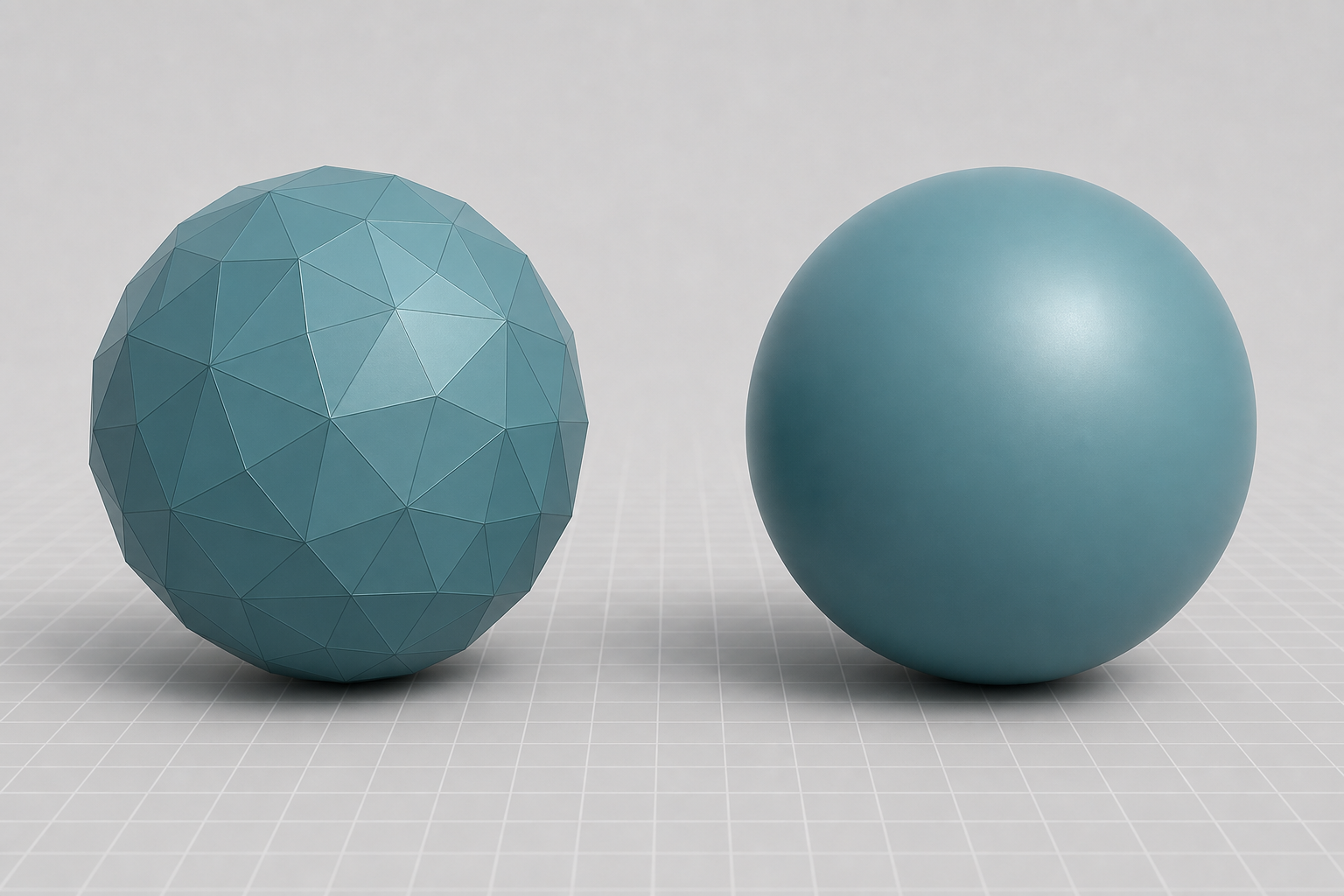
Low Resolution (Few Triangles)
- Curved surfaces show visible flat facets (like a disco ball instead of a smooth sphere)
- Small details may be lost entirely
- Very small file size
- Faster to process in slicer
High Resolution (Many Triangles)
- Curves appear smooth and accurate
- Fine details preserved
- Large file size (can be 50–200MB for complex models)
- Slower to load and slice
The Sweet Spot
For most FDM printing, you'll never see the difference between "high" and "ultra-high" resolution because the layer lines (typically 0.2mm) are coarser than the triangle facets. Here's a practical guide:
Model Type | Recommended Resolution | Why |
|---|---|---|
Geometric / angular (boxes, brackets) | Low–Medium | No curves to facet |
Organic / curved (figurines, vases) | Medium–High | Visible faceting on curves |
Engineering parts with tight tolerances | High | Dimensional accuracy matters |
Miniatures / small detailed objects | High | Every triangle counts at small scale |
Rule of thumb: If your exported STL is under 50MB and curves look smooth in your slicer preview, the resolution is fine. Don't chase "maximum quality" — you're adding file size without visible improvement.
Where to Get 3D Printer Files
Now that you understand file formats, where do you actually find 3d printer files to print?
Free model libraries:
- Printables (by Prusa) — high-quality, curated models. Mostly STL + 3MF.
- Thingiverse — the largest collection, but quality varies. Almost all STL.
- MakerWorld (by Bambu Lab) — growing fast, many 3MF files with pre-configured settings.
- Thangs — aggregator that searches across multiple sites.
Design your own:
- Tinkercad — browser-based, perfect for beginners. Exports STL.
- Fusion 360 — professional CAD, free for personal use. Exports STEP, STL, 3MF.
- Blender — powerful free 3D modeling. Exports OBJ, STL, 3MF, and more.
- OpenSCAD — code-based modeling for parametric designs. Exports STL.
Want a deeper dive into where to find models? We have a full comparison of the best Thingiverse alternatives with pros and cons for each platform.
 Editorial Team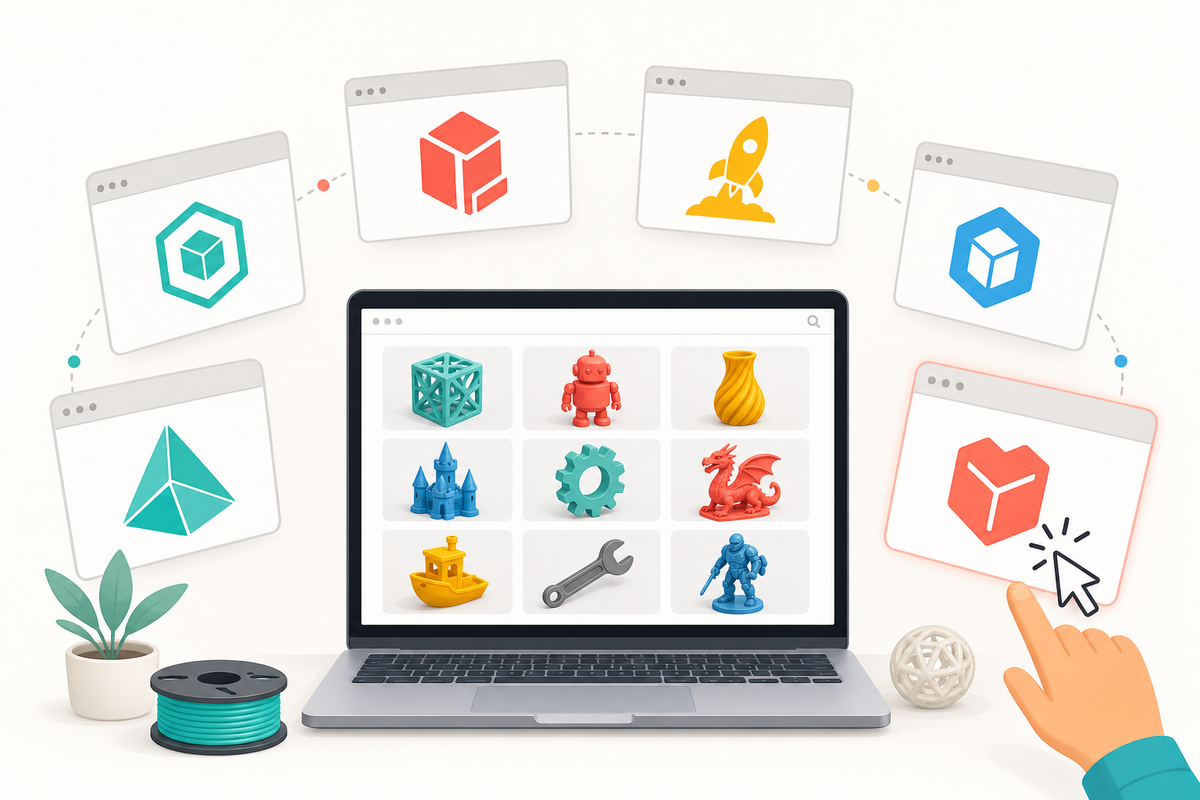
FAQ
What file format does a 3D printer use?
Most 3D printers ultimately run on G-code — machine instructions generated by slicing software. But the model files you download and import into your slicer are typically STL or 3MF format. Your slicer converts the model into G-code automatically. So the short answer to "what file format do 3d printers use" is: STL or 3MF for the model, G-code for the actual printing.
Is STL a CAD file?
No. STL is a mesh file — it stores surfaces as triangles and has no parametric data. You can't easily edit dimensions or features in an STL file. CAD files (like STEP, SLDPRT, or F3D) store mathematical geometry that's fully editable. STL is what you export from CAD when you're ready to print. Think of it this way: the CAD file is the editable Word document, and the STL is the printed PDF.
Is STL or OBJ better for 3D printing?
For most desktop 3D printing, STL is more practical — it's universally supported, simpler, and smaller. OBJ is only better when your model has color or texture data that needs to be preserved (like painted miniatures for a full-color printer). If you're printing in a single color on an FDM printer, STL and OBJ produce identical results — but STL files are easier to work with and less prone to missing-file issues (OBJ needs its companion .mtl file).
Do all 3D printers use STL files?
All desktop 3D printers accept STL files through their slicer software, yes. But they don't run STL files directly — the slicer converts them to G-code (or a proprietary format for resin printers). And increasingly, 3MF is becoming the preferred import format because it's more reliable and feature-rich. So while STL works everywhere, it's not the only option and not always the best one.
How do I create 3D printer files?
You can create 3d printer files in three ways: (1) Design from scratch in CAD software like Tinkercad, Fusion 360, or Blender, then export as STL or 3MF. (2) Download pre-made models from sites like Printables or MakerWorld. (3) 3D scan a physical object using a scanner or photogrammetry app, which produces an OBJ or PLY file. For beginners, downloading ready-made models is the fastest path, while Tinkercad is the easiest way to start designing your own.
Quick Reference: 3D Printer File Types Comparison Table
Format | Type | Geometry | Color | Materials | Editable | Typical Size | Best For |
|---|---|---|---|---|---|---|---|
STL | Mesh | Triangles | No | No | No | Medium | General FDM printing |
3MF | Mesh+ | Triangles (compressed) | Yes | Yes | No | Small | Modern workflows, multi-color |
OBJ | Mesh | Polygons | Yes (.mtl) | Limited | No | Large | Color/textured prints |
STEP | CAD | Math curves | No | No | Yes | Medium–Large | Engineering, modification |
G-code | Instructions | Toolpaths | N/A | N/A | No | Large | Printer execution |
AMF | Mesh | Triangles (XML) | Yes | Yes | No | Large | Rare; mostly replaced by 3MF |
PLY | Mesh | Points/Polygons | Yes (vertex) | No | No | Large | 3D scanning output |
Bottom line: If you're printing in one color on a desktop FDM printer, STL works perfectly. If you want fewer errors, smaller files, and multi-color support, use 3MF whenever possible. And if you need to edit a model before printing, ask for the STEP file.
The file format doesn't make or break your print — but picking the right one makes the entire process smoother.
*Last updated August 2026. Format compatibility checked against Bambu Studio 2.x and Cura 6.x.

Comments ()