What Is an OBJ File? A Beginner's Guide to the 3D Model Format
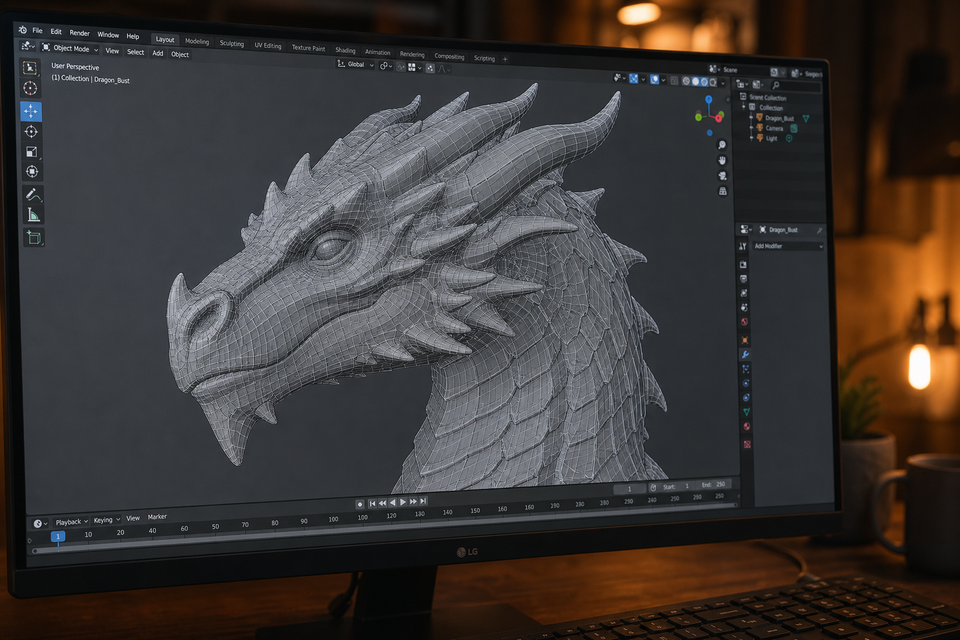
You downloaded a 3D model and the folder contains a .obj file, a .mtl file, and maybe some image files. What are all these, and can you actually print them?
An OBJ file is one of the most common 3D model formats you'll encounter. It's been around since the 1980s, works with almost every 3D software, and can carry more information than a basic STL file. This guide explains what is an OBJ file, what's inside it, and when you should use one.
What Is an OBJ File?
The OBJ file format (officially called Wavefront OBJ) was created by Wavefront Technologies in the 1980s for their Advanced Visualizer software. Despite its age, it became one of the most universally supported formats in 3D graphics.
An .obj file stores 3D geometry data in plain text. You can literally open one in Notepad and read it. Inside, you'll find:
- Vertices (v): The 3D coordinates of every point in the model
- Texture coordinates (vt): How 2D images map onto the 3D surface
- Normals (vn): Direction vectors that tell software which way each face points
- Faces (f): Definitions of polygons connecting the vertices together
Unlike STL files (which only store triangles), the OBJ format supports polygons with any number of sides, including quads. This makes OBJ popular in obj modeling workflows where quad-based topology matters for clean subdivision and animation.
The OBJ file type is also unique in that it uses a companion file called MTL (Material Template Library) to define colors, textures, and surface properties. The geometry lives in the .obj, the appearance lives in the .mtl.
OBJ File Structure: What's Actually Inside
Here's what a simple cube looks like inside an OBJ file if you open it with a text editor:
# Simple cube
mtllib cube.mtl
o Cube

v  1.0  1.0 -1.0
v  1.0 -1.0 -1.0
v -1.0 -1.0 -1.0
v -1.0  1.0 -1.0
v  1.0  1.0  1.0
v -1.0  1.0  1.0

vn 0.0 0.0 -1.0
vn 0.0 0.0  1.0

usemtl Material001
f 1//1 2//1 3//1 4//1
f 5//2 6//2 7//2 8//2
Breaking this down:
- Lines starting with
vdefine vertex positions in 3D space - Lines starting with
vndefine normal directions mtllibreferences the companion MTL fileusemtlassigns a material to the following faces- Lines starting with
fdefine faces by connecting vertices together
The mtllib cube.mtl line points to a separate file that might look like:
newmtl Material001
Ka 0.2 0.2 0.2
Kd 0.8 0.1 0.1
Ks 0.5 0.5 0.5
Ns 32.0
map_Kd texture.png
This tells the software the material is a slightly shiny red surface with a texture image applied.
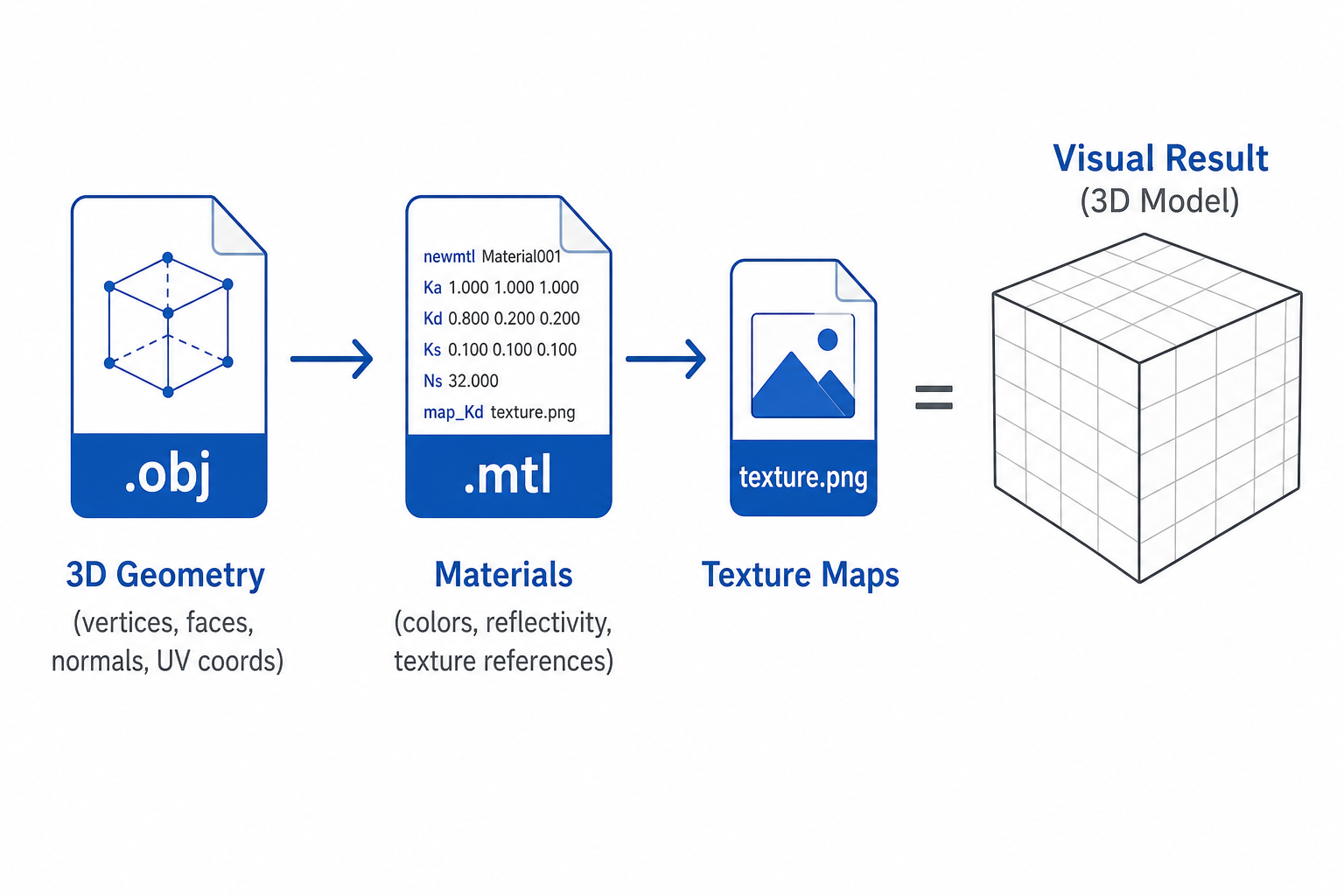
This multi-file approach is both a strength and a weakness. You get rich visual data, but if the .mtl or texture files get separated from the .obj, you lose the appearance information.
OBJ vs STL: What's the Difference?
Both formats store 3D geometry, but they serve different purposes.
Feature | OBJ | STL |
|---|---|---|
Geometry | Polygons (quads, n-gons, triangles) | Triangles only |
Color / texture | Yes (via MTL file) | No |
UV mapping | Yes | No |
File readability | Human-readable text | Binary (usually) or ASCII |
File size | Larger (more data stored) | Smaller for same geometry |
3D printing support | Supported by most slicers | Universal standard |
Multi-material | Yes (multiple materials per file) | No |
Animation data | No | No |
When to use OBJ: You need color, texture, or UV data. You're working in Blender, Maya, or another 3D tool where visual fidelity matters. You're sharing models between different 3D software.
When to use STL: You're 3D printing a single-color model. You want maximum compatibility with slicers. You want the simplest possible format with no extra files to manage.
For a broader comparison of all formats, see our 3D printer file types guide.
Can You 3D Print an OBJ File?
Yes. Most modern slicers accept OBJ files directly:
- Cura: File > Open > select .obj
- PrusaSlicer / OrcaSlicer: Drag and drop or File > Import
- Bambu Studio: Supports OBJ import natively
- ChiTuBox: Accepts OBJ for resin printing
The slicer reads the geometry from the OBJ and ignores the MTL/texture data (since your printer only needs the shape, not the colors). The print result is identical to what you'd get from an equivalent STL.
When you might need to convert first:
- Very old or niche slicers that only accept STL
- Upload platforms that require a specific format
- The OBJ contains quads or n-gons that your slicer doesn't triangulate properly (rare)
Practical tip: If you download a model that only comes as OBJ and your slicer shows errors, convert it to STL using Blender or Meshmixer. This forces triangulation and usually fixes import issues.
For most beginner printing scenarios, STL is simpler because it's a single file with no dependencies. OBJ becomes relevant when you're doing multi-color printing or working in a 3D design pipeline where texture information matters.
How to Open and View OBJ Files
The OBJ format is supported by virtually every 3D application:
For editing and obj modeling:
- Blender (free, full-featured, handles OBJ perfectly)
- Fusion 360 (import as mesh body)
- Maya / 3ds Max (professional tools, native OBJ support)
- FreeCAD (open-source)
OBJ file viewer options (just viewing, no editing):
- 3dviewer.net (browser-based, drag and drop, free)
- Windows 3D Builder (pre-installed on Windows)
- macOS Preview (basic viewing)
- MeshLab (free, cross-platform, shows wireframe and texture)
For 3D printing (slicing):
- Bambu Studio, Cura, PrusaSlicer, ChiTuBox
If you're watching YouTube 3D OBJ tutorials, Blender is by far the most common software shown. Its OBJ import/export is excellent, and the tutorials are plentiful for beginners.
How to Convert OBJ to STL
Sometimes you need an STL instead. The conversion is straightforward:
Blender (free)
- Open Blender, go to File > Import > Wavefront (.obj)
- Select your .obj file
- With the model selected, go to File > Export > STL (.stl)
- Save
Meshmixer (free)
- Open Meshmixer, click Import
- Select the .obj file
- Go to File > Export > choose STL Binary
- Save
Online converters
- AnyConv (anyconv.com)
- Convertio (convertio.co)
- Spin 3D (free desktop app)
What you lose in conversion: Color, texture, UV mapping, and material data are all discarded. Only the raw geometry survives. If you only need the shape for printing, this is fine.
Where to Find Free OBJ 3D Models
Looking for OBJ 3D models to work with? These platforms offer free downloads:
- Sketchfab (sketchfab.com): Large library, many free OBJ downloads, in-browser 3D preview
- Free3D (free3d.com): Free models in OBJ and other formats
- TurboSquid (turbosquid.com): Mix of free and paid, high quality
- CGTrader (cgtrader.com): Community marketplace with free options
- Clara.io (clara.io): Browser-based 3D editor with a model library
For 3D printing specifically, most model platforms (Printables, MakerWorld, Thingiverse) primarily offer STL files, but some designers upload OBJ versions too. Check our guides to free 3D print files and Thingiverse alternatives for more sources.
The Disadvantages of OBJ Files
OBJ is versatile, but it has real limitations:
Large file sizes. Because OBJ is text-based and stores more data types (UVs, normals, materials), .obj files are significantly larger than equivalent STL files. A model that's 5 MB as binary STL might be 20-30 MB as OBJ.
Multi-file dependency. The .obj, .mtl, and texture images must stay together. Move the .obj without the .mtl and you lose all material data. This makes sharing and organizing messier than single-file formats.
No animation or scene data. OBJ stores static geometry only. No bones, no rigging, no scene hierarchy, no lighting. For animated content, FBX or glTF are the standard choices.
Orphaned technology. The format hasn't been officially updated since the 1980s. While it still works, it's not evolving. Newer formats like 3MF (for 3D printing) and glTF (for web/AR) offer more features in smaller packages.
Inconsistent software interpretation. Because the format is old and loosely defined, different software can interpret the same OBJ slightly differently. You might see minor issues with normals or material assignments when moving between programs.
For 3D printing workflows, OBJ works but isn't ideal. STL is simpler for basic prints, and 3MF is better for projects that need embedded settings and colors.
FAQ
What can open a .OBJ file?
Almost every 3D application opens .obj files: Blender, Fusion 360, Maya, 3ds Max, FreeCAD, MeshLab, and Windows 3D Builder. For 3D printing, slicers like Cura, PrusaSlicer, and Bambu Studio all import OBJ directly. For quick viewing without installing anything, 3dviewer.net works in your browser.
Can I 3D print an OBJ file?
Yes. Most modern slicers (Cura, PrusaSlicer, Bambu Studio, ChiTuBox) accept OBJ files directly. The slicer reads the geometry and ignores color/texture data. The print result is the same as from an equivalent STL file. If your slicer has trouble, convert to STL first using Blender or an online converter.
Is an OBJ file editable?
Yes. Since OBJ is plain text, you can technically edit it in a text editor. In practice, you'd use 3D software like Blender, Maya, or Meshmixer to modify the geometry visually. You can move vertices, reshape faces, add or remove detail, and re-export. However, OBJ stores mesh data, not parametric features. You can't change dimensions the way you would in a CAD file.
What are the disadvantages of using OBJ files?
OBJ files are large (text-based), require companion files for materials (.mtl + textures), don't support animation, and haven't been updated since the 1980s. For 3D printing, they work but STL is simpler and 3MF is more capable. For real-time applications, glTF has largely replaced OBJ as the modern standard.
What is the difference between OBJ and STL files?
OBJ stores geometry plus color, texture coordinates, and material references. STL stores only surface geometry as triangles. OBJ supports quads and n-gons; STL is triangles only. OBJ is text-based and human-readable; STL is usually binary and compact. For 3D printing, STL is the simpler choice. For 3D rendering or sharing textured models between software, OBJ carries more useful data.

Comments ()