Best Free STL Editor for 3D Printing (2026)
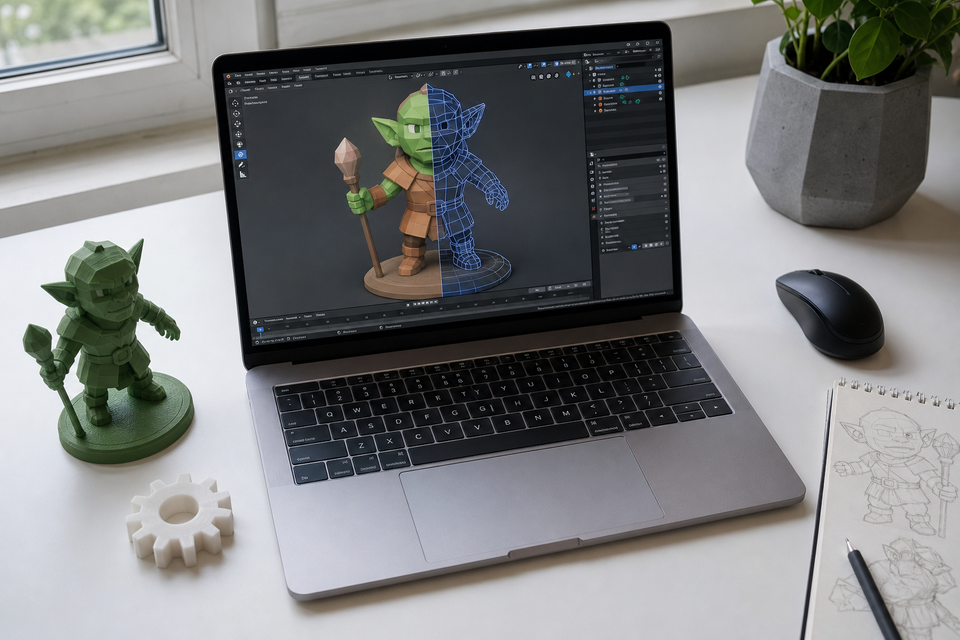
You downloaded an STL file and something needs to change. Maybe the model is too big, maybe you need to cut it in half to fit your build plate, or maybe there is a hole in the mesh that makes your slicer throw errors.
Whatever the edit, you need an STL editor. The problem is there are dozens of options, from browser tools to professional 3D software, and they all do different things well.
This guide compares the best free STL editors available in 2026, organized by what they actually do best. Whether you need a quick fix, a full sculpting overhaul, or just want to know how to edit STL files without installing anything, you will find the right tool here.
How I Actually Use STL Editors (My Real Workflow)
After editing hundreds of downloaded STL files, I have settled into a simple two-tool workflow that handles 95% of what I need. For quick fixes (scaling, cutting a model in half, repairing mesh errors), I open Meshmixer. It loads instantly, the repair tools work on the first try, and I can split a model along any plane in under a minute. For anything involving precise measurements or adding new geometry, I switch to Blender, which is more powerful but takes longer to set up for simple tasks.
The honest truth is that most beginners do not need a full STL editor at all. If your only problem is "this model is too big" or "I need to rotate it," your slicer already handles that. Bambu Studio and Cura both have built-in scaling, rotation, and even basic cutting tools. I only open a dedicated editor when I need to do something the slicer cannot: combining two models, removing a section of geometry, or fixing a broken mesh that causes slicing errors. If that sounds like your situation, Meshmixer is where I would start.
Quick Comparison: Best STL Editors at a Glance
Editor | Price | Platform | Best For | Difficulty |
|---|---|---|---|---|
Meshmixer | Free | Windows, Mac | Mesh repair, sculpting, supports | Intermediate |
Blender | Free | Windows, Mac, Linux | Advanced editing, sculpting, animation | Advanced |
Tinkercad | Free | Browser (any OS) | Beginners, boolean operations | Easy |
Microsoft 3D Builder | Free | Windows | Quick fixes, cut, merge | Easy |
FreeCAD | Free | Windows, Mac, Linux | Precise dimensional edits | Intermediate |
MeshLab | Free | Windows, Mac, Linux | Analysis, cleanup, decimation | Intermediate |
3D Slash | Free tier | Browser | Absolute beginners | Very easy |
Nomad Sculpt | $15 | iOS, Android | Mobile sculpting | Intermediate |
Shapr3D | Free tier | iPad, Mac | Precise CAD edits on tablet | Intermediate |
Best Free STL Editors (Detailed Reviews)
Meshmixer: Best for Mesh Repair and Sculpting
Meshmixer by Autodesk is the Swiss Army knife of stl editing software. It handles repairs, sculpting, boolean operations, support generation, and hollowing, all in one free package.
What it does well:
- Auto-repair broken meshes (Analysis > Inspector > Auto Repair All)
- Sculpt organic shapes with brushes (smooth, inflate, pinch)
- Boolean operations (combine or subtract models)
- Generate custom support structures for resin printing
- Hollow models to save material
Limitations:
- No longer actively updated by Autodesk (still works fine)
- Interface feels dated compared to newer tools
- Not great for precise dimensional changes
Best for: Fixing downloaded models that have mesh errors, adding or removing features from existing designs, and generating supports for resin printing.
If your slicer is showing errors when you import an STL file, Meshmixer's repair tools should be your first stop.
Blender: Best for Advanced Editing
Blender is the most powerful free STL editor available. It can do literally anything: sculpting, boolean operations, mesh deformation, adding fine details, retopology, and much more. Professional studios use it for movies and games.
What it does well:
- Full sculpting suite with dozens of brush types
- Precise mesh editing (vertex, edge, face level control)
- Modifier stack (mirror, subdivide, boolean, solidify)
- Python scripting for automated edits
- Handles massive files without choking
Limitations:
- Steep learning curve (budget 10-20 hours to feel comfortable)
- Overkill for simple tasks like scaling or cutting
- Default settings are not optimized for 3D printing workflows
Best for: Complex modifications, sculpting custom details, creating remixes, or when no other tool can do what you need. If you plan to edit STL files regularly, learning Blender is worth the time investment.
Tinkercad: Best for Beginners
Tinkercad runs entirely in your browser. Drag shapes onto a workplane, combine them, subtract them, and export. That is basically it, and for many STL edits, that is enough.
What it does well:
- Import STL files and combine them with primitive shapes
- Boolean operations (group shapes to merge, use "hole" shapes to cut)
- Add text to models (Text shape > position > group)
- Zero installation, works on any computer with a browser
- Intuitive drag-and-drop interface
Limitations:
- Struggles with complex models (high polygon counts slow it down)
- Cannot do organic sculpting
- Limited precision controls
- 25MB import limit
Best for: Beginners who need to add a mounting hole, engrave text, combine two models, or make simple shape modifications. Also the best free online STL editor for quick jobs.
Microsoft 3D Builder: Best for Quick Fixes on Windows
If you use Windows, 3D Builder is already on your computer (or a free download from the Microsoft Store). It handles the most common STL edits with minimal friction.
What it does well:
- Scale, rotate, and position models precisely
- Plane cut (split a model into two pieces)
- Merge multiple STL files into one
- Auto-repair on import (fixes minor mesh issues automatically)
- Settle on plane (flatten bottom for better bed adhesion)
Limitations:
- Windows only
- No sculpting tools
- Cannot handle very large or complex meshes
- Limited export options
Best for: Windows users who need a 30-second fix. Open STL, cut it in half, save. Done.
FreeCAD: Best for Precise Dimensional Edits
Here is the thing about STL files: they store shapes as triangles, not dimensions. So changing a hole from 5mm to 5.2mm diameter is actually difficult in most mesh editors. FreeCAD solves this by converting the mesh back to a solid body.
What it does well:
- Convert STL mesh to a parametric solid (Part > Shape from Mesh > Solid)
- Add precise features (holes, fillets, chamfers) with exact dimensions
- Measurement tools for checking distances and angles
- Full parametric CAD modeling if you want to redesign from scratch
- Cross-platform (Windows, Mac, Linux)
Limitations:
- Mesh-to-solid conversion is not always clean (complex models may need cleanup)
- Steeper learning curve than Tinkercad or 3D Builder
- Interface can feel cluttered
Best for: When you need to modify stl files with exact measurements. If the original designer shared a STEP file instead of just STL, use that, as STEP preserves the parametric data that makes precise edits easy.
MeshLab: Best for Analysis and Cleanup
MeshLab is not really an editor in the creative sense. It is a mesh processing tool built for cleaning, analyzing, and optimizing 3D scans and models.
What it does well:
- Decimate (reduce polygon count without visible quality loss)
- Repair non-manifold edges, flipped normals, duplicate faces
- Measure mesh properties (volume, surface area, watertightness)
- Align and merge multiple scans
- Batch processing for multiple files
Limitations:
- Cannot sculpt or add new geometry
- Interface is purely technical (not visual/artistic)
- No undo history in older versions
Best for: Cleaning up 3D scans, reducing file size for complex models, and running quality checks before sending files to your slicer for STL to G-code conversion.
Best Online STL Editors (No Install Required)
If you do not want to download software, or you are on a Chromebook or shared computer, these online STL editors work directly in your browser.
Tinkercad (Best Online Option)
Already covered above, but worth emphasizing: Tinkercad is the best online stl editor for most people. Free account, import STL, drag shapes to modify, export. The 25MB file limit is the only real constraint.
URL: tinkercad.com
3D Slash (Easiest Learning Curve)
3D Slash uses a Minecraft-style block interface. You "carve" your model by removing blocks or adding them. It sounds limited, but for simple modifications on downloaded models, it works surprisingly well.
Best for: People who have never touched 3D software and find even Tinkercad intimidating.
URL: 3dslash.net
MakePrintable (Online Repair Only)
Not an editor, but worth mentioning. Upload a broken STL, MakePrintable fixes mesh errors automatically, download the repaired file. No account needed for basic repairs.
Best for: Quick mesh repair when you do not want to open Meshmixer just to fix a few holes.
AI STL Editors: What Actually Works in 2026
"STL editor AI" is a trending search, so let us address what AI can and cannot do for STL editing right now.
What AI can do today:
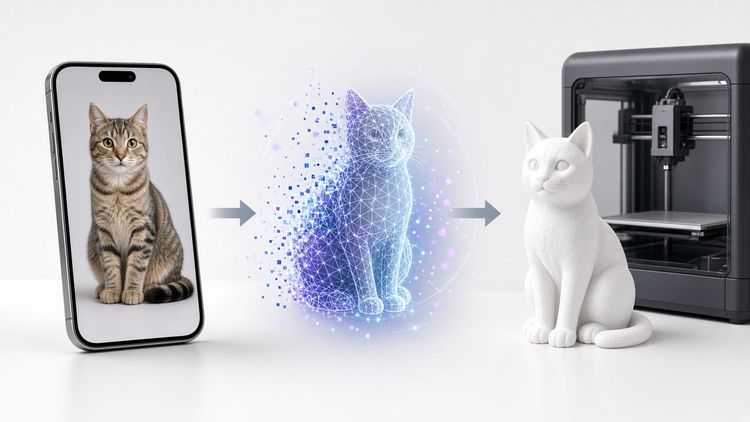
- Generate new 3D models from text or images: Tools like Meshy.ai, Tripo3D, and MakerWorld's MakerLab let you describe what you want or upload a photo, and AI generates a printable 3D model. This is not editing an existing STL, but creating new ones from scratch.
- Generate parametric models via code: ChatGPT can write OpenSCAD scripts that produce STL files. Describe what you want ("a box with rounded corners, 50mm wide, with a lid that snaps on") and it generates the code. Run it in OpenSCAD to get your STL.
- Auto-repair meshes: Some tools now use AI to intelligently fill holes and fix broken geometry, going beyond simple algorithms.
What AI cannot do yet:
- Open your specific downloaded STL and make targeted edits ("move this arm 2mm to the left")
- Understand the design intent of an existing model
- Reliably produce print-ready models without human review
Bottom line: AI is great for generating new models or getting a rough starting point. For editing an existing STL file you downloaded from a model repository, you still need a traditional STL editor.
STL Editor Apps for Android and iOS
Related searches show many people looking for "STL editor Android" and "STL editor app." Here are your best mobile options:
Nomad Sculpt (iOS and Android, $15)
The best mobile sculpting app, period. Nomad Sculpt offers desktop-quality sculpting brushes, boolean operations, and STL import/export on a phone or tablet. If you have an iPad or Android tablet with a stylus, this is genuinely capable stl editing software.
Best for: Sculpting organic edits, smoothing surfaces, adding custom details while away from your desktop.
Shapr3D (iPad and Mac, Free Tier)
A professional CAD tool that runs on iPad with Apple Pencil support. The free tier lets you import STL, convert to solid, and make precise edits. Feels like a simplified SolidWorks.
Best for: Precise dimensional edits on a tablet. Engineers and designers love this one.
3D Viewer Apps (Free, Various)
Several free apps let you view and do basic operations (scale, rotate, measure) on STL files. They are not full editors, but useful for checking a model before printing:
- 3D Model Viewer (Android)
- CAD Assistant (iOS/Android)
How to Choose the Right STL Editor
Not sure which tool to pick? Here is a decision guide based on what you actually need to do:
"I just need to scale or cut my model" → Your slicer (Bambu Studio, Cura, PrusaSlicer) already does this. No extra software needed.
"My file has errors and the slicer shows warnings" → Meshmixer (Auto Repair) or MakePrintable (online, instant).
"I want to combine two models or add a base" → Tinkercad (browser) or 3D Builder (Windows).
"I need to change a specific dimension precisely" → FreeCAD (convert to solid, then edit parametrically).
"I want to sculpt, reshape, or add organic details" → Blender (desktop) or Nomad Sculpt (mobile).
"I want to reduce file size without losing quality" → MeshLab (Decimate filter).
"I do not want to install anything" → Tinkercad (best free online stl editor).
This is the key distinction many articles miss: how to modify stl files depends entirely on what kind of modification you need. A tool that is perfect for one task may be terrible for another.
Can You Model an STL?
A common question from beginners: can you model an stl from scratch? Technically yes, but it is not ideal. STL stores only triangle meshes with no parametric history. If you want to create a new model, start in a CAD tool (Fusion 360, FreeCAD, or Tinkercad) and export to STL at the end. If you want to edit an existing STL, the tools above are what you need.
For a deeper dive into how STL compares to other 3D printer file types, we have a full breakdown.
FAQ
What is the best free STL editor?
For most beginners, Tinkercad is the easiest free STL editor because it runs in a browser with zero setup. For mesh repair, Meshmixer is the standard. For advanced editing with full sculpting and modeling capabilities, Blender is the most powerful free option available. The best stl editor for you depends on the specific task.
Is it possible to edit an STL file?
Yes. STL files are triangle meshes that can be opened and modified in tools like Blender, Meshmixer, Tinkercad, or FreeCAD. You can scale, cut, merge, sculpt, repair, add text, and reshape them. The main limitation is that STL does not store parametric data, so making precise dimensional changes (like adjusting a hole diameter by 0.2mm) requires converting the mesh to a solid body first.
Can ChatGPT actually make STL files?
Indirectly, yes. ChatGPT can generate OpenSCAD code that, when run in the OpenSCAD application, produces an STL file. It works well for geometric shapes and functional parts. However, ChatGPT cannot directly open, view, or edit an existing STL file. For AI-powered 3D model generation from images or text prompts, dedicated tools like Meshy.ai or MakerWorld's MakerLab are more capable.
Which software is best for an STL file?
It depends on what you want to do. For viewing: Microsoft 3D Builder or any online STL viewer. For editing: Blender (advanced) or Tinkercad (beginner). For repairing: Meshmixer or MeshLab. For slicing (turning STL into printable G-code): Bambu Studio, Cura, or PrusaSlicer. Check our guide on converting STL to G-code for the printing workflow.
*Last updated August 2026. All software tested on Windows 11 with files from MakerWorld and Printables.

Comments ()