6 Best Sites for Free 3D Print Files: A Beginner's Complete Guide
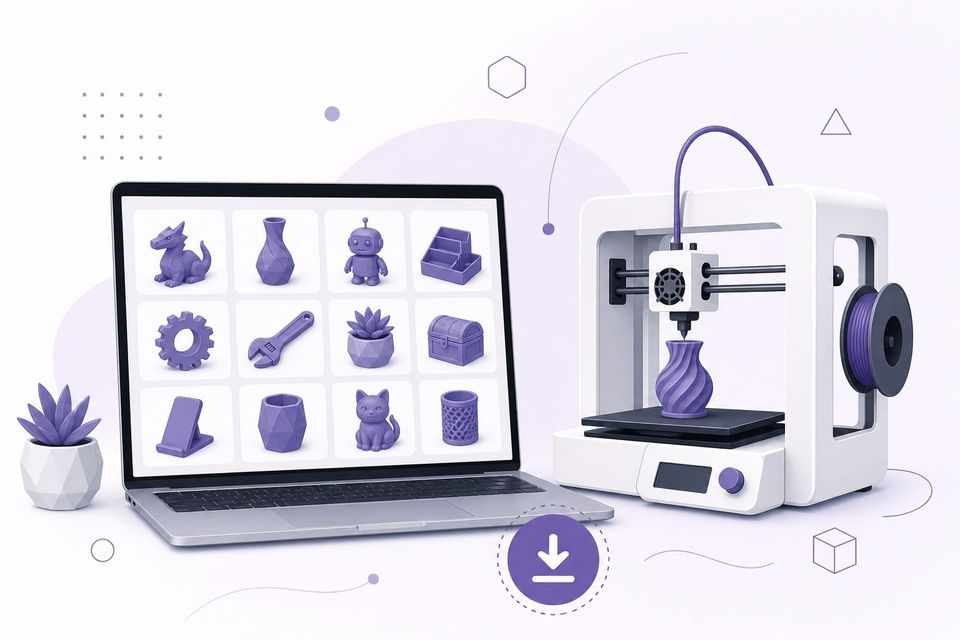
You have a 3D printer. You have filament loaded. Now you need something to actually print.
The good news is that millions of free 3D print files exist online, ready to download and send to your printer. The less obvious part: knowing where to find good ones, what file format to pick, and how to avoid wasting hours on a file that was never going to print successfully in the first place.
This guide covers everything a beginner needs to know about finding, evaluating, and using 3d printable files, from the best websites to the legal rules you should be aware of.
What Are 3D Print Files?
A 3D print file is a digital model that describes the shape of a physical object. It contains the geometry (surface shape, dimensions, structure) that your printer needs to recreate the object layer by layer.
However, your 3D printer cannot read these files directly. You first need to open the file in slicing software (like Cura, PrusaSlicer, or Bambu Studio), which converts the 3D shape into layer-by-layer instructions your specific printer understands.
Think of it this way: the 3D file is the blueprint, the slicer is the translator, and the G-code output is the actual instruction manual your printer follows.
We have a detailed guide coming that breaks down every 3D printer file format and when to use each one.
3D Print File Formats Explained
When you browse 3D printing websites, you will see files offered in several formats. Here is what each one means and which to choose.
STL (Standard Tessellation Language)
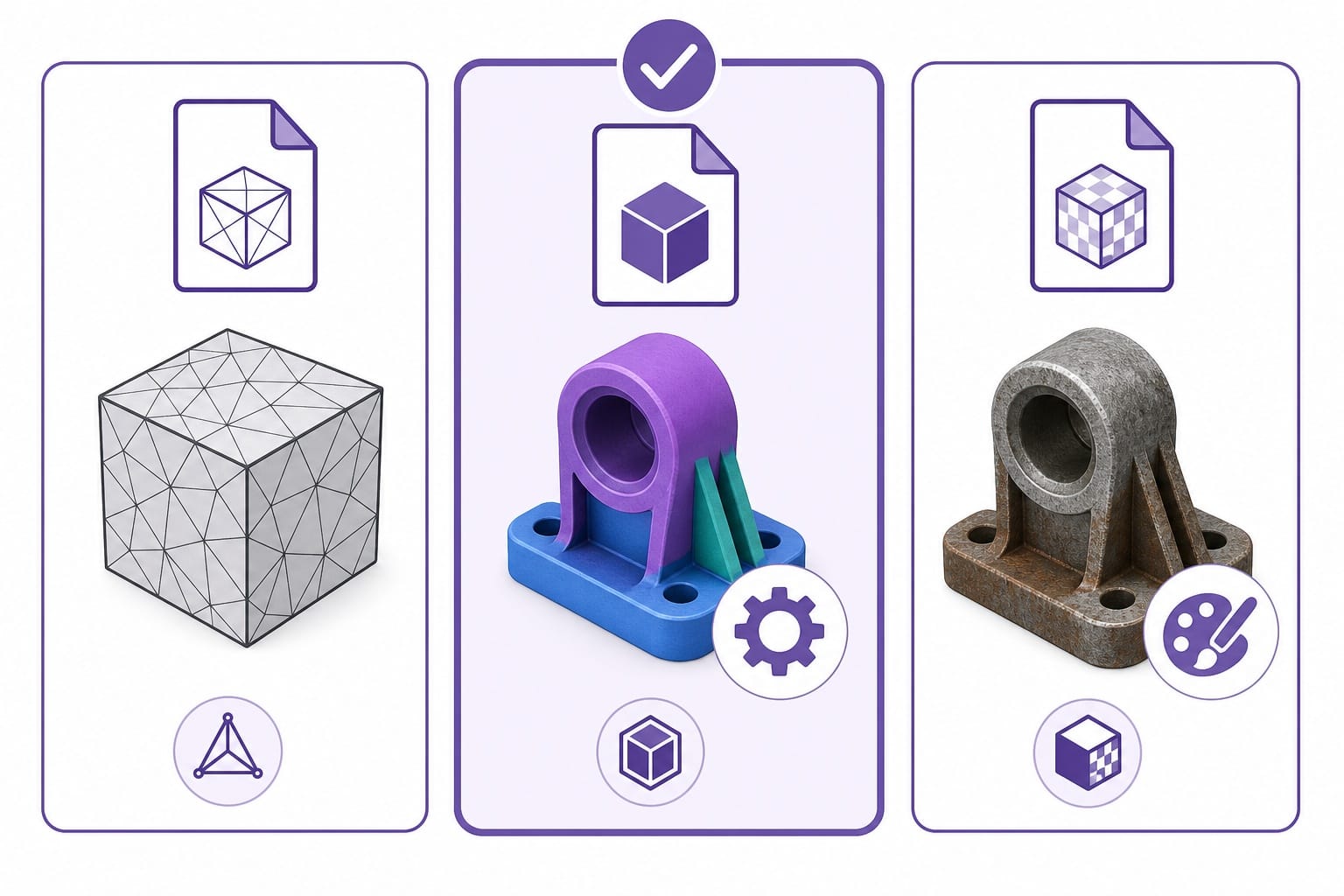
STL is the most common 3D print file format. It has been the standard since the 1980s and works with virtually every slicer and printer on the market.
What it stores: surface geometry only (a mesh of tiny triangles describing the shape)
What it does NOT store: color, texture, material info, or print settings
When to use it: hen only one format is available, or when you just need the shape and will configure everything yourself in your slicer.
3MF (3D Manufacturing Format)
3MF is the modern replacement for STL. It was developed by a consortium including Microsoft, Autodesk, and major 3D printer companies. If a file is available in both STL and 3MF, always pick 3MF.
What it stores: geometry + colors + textures + print settings + support info + multi-part assemblies, all in one compact file
Why it is better: smaller file size, includes recommended print settings, supports multi-color printing, and avoids the mesh errors that plague STL files.
When to use it: whenever available. Most modern slicers (PrusaSlicer, Bambu Studio, Cura) fully support 3MF.
OBJ (Wavefront Object)
OBJ files are common in the broader 3D modeling world (games, animation, visualization). They support color and texture data, making them useful for resin printers with painting workflows or multi-color FDM printing.
When to use it: when you need texture/color information that STL cannot carry, or for resin models with complex surface detail.
Which Format Should You Download?
Simple rule for beginners:
- 3MF available? Download that. It includes everything.
- Only STL? That works perfectly fine. You will just set your own print settings in the slicer.
- OBJ only? Usually fine, but some slicers handle OBJ less smoothly than STL. Convert it to STL using a free tool if needed.
Best Websites for Free 3D Printer Files
These are the most reliable 3D printing websites where you can find free 3d printer files. Each serves a slightly different purpose.
Thingiverse
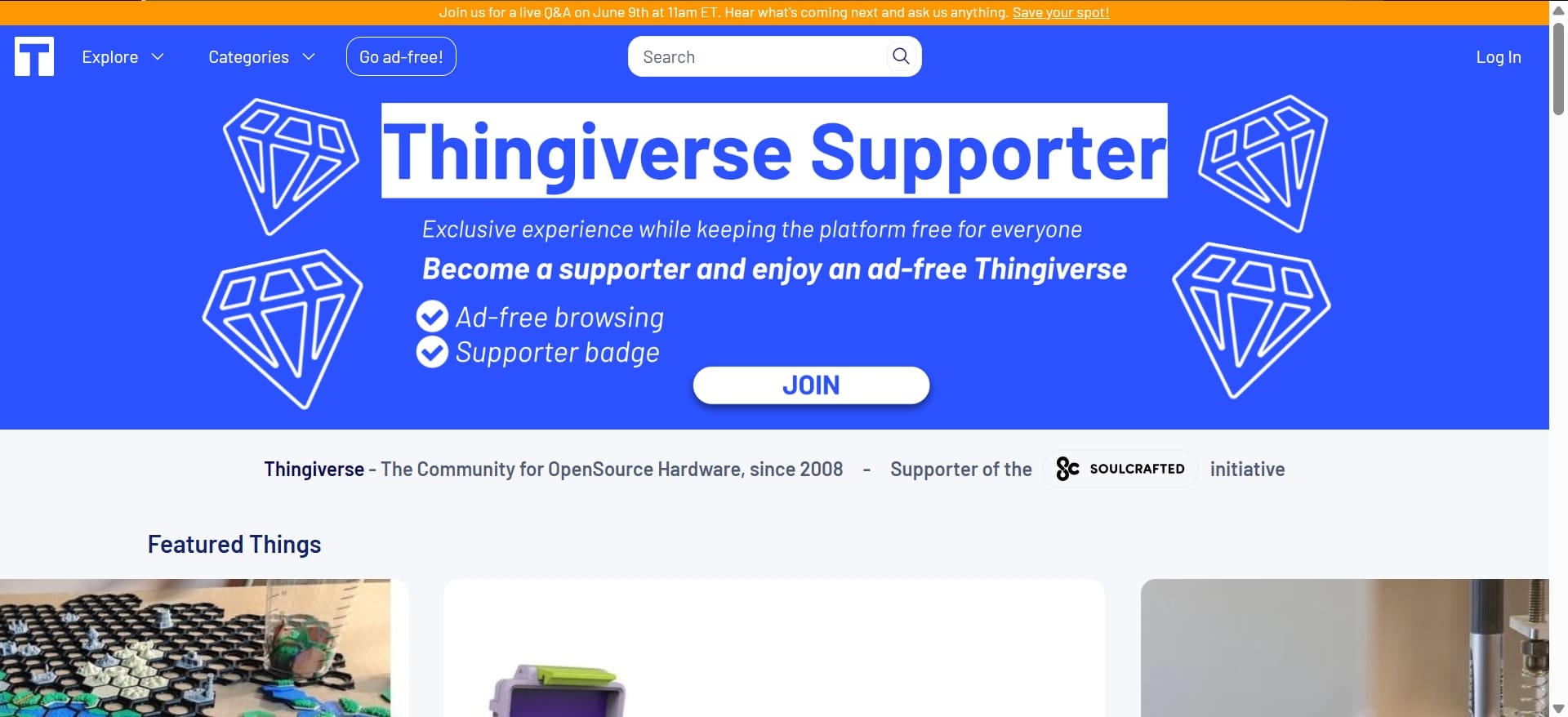
URL: https://www.thingiverse.com/
Best for: the largest selection of free models (2 million+)
Thingiverse is the oldest and biggest free 3D model library, launched by MakerBot in 2008. If a 3D printable file exists, it is probably on Thingiverse somewhere.
Strengths: massive library, every category imaginable, completely free, active community, remix culture (users improve each other's designs).
Weaknesses: quality varies wildly (anyone can upload), search can be frustrating, site performance can be slow, many older files lack print settings or documentation.
Tip: always sort by "Most Makes" instead of "Newest" to find files that real people have actually printed successfully.
Printables
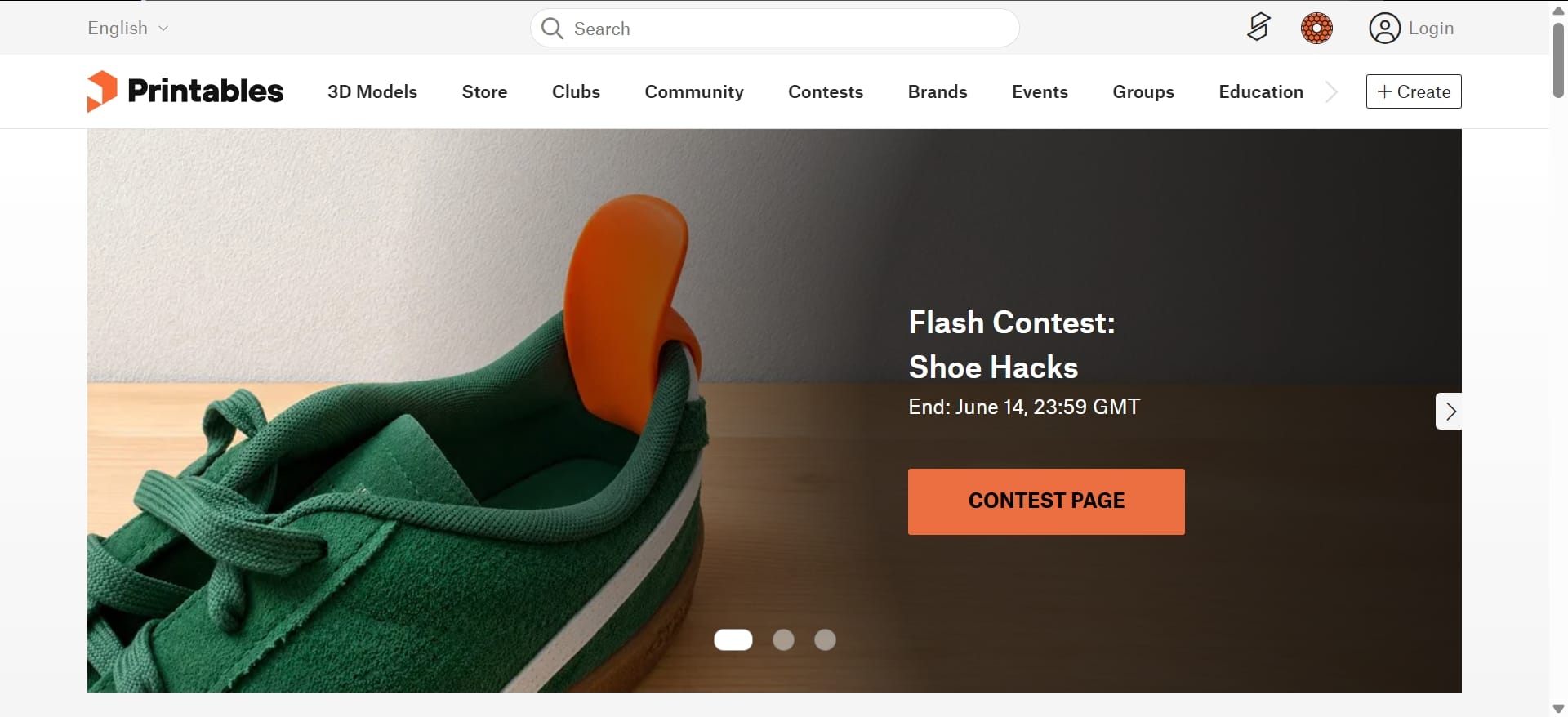
URL: https://www.printables.com/
Best for: high-quality, vetted files with detailed print settings
Printables is run by Prusa Research and has quickly become a favorite for quality-conscious users. Files are often reviewed for printability, and uploaders typically include detailed settings (layer height, infill, supports needed).
Strengths: curated quality, excellent documentation, design contests produce great models, clean interface, integrated with PrusaSlicer.
Weaknesses: smaller library than Thingiverse, slightly Prusa-centric (but files work on any printer).
MakerWorld
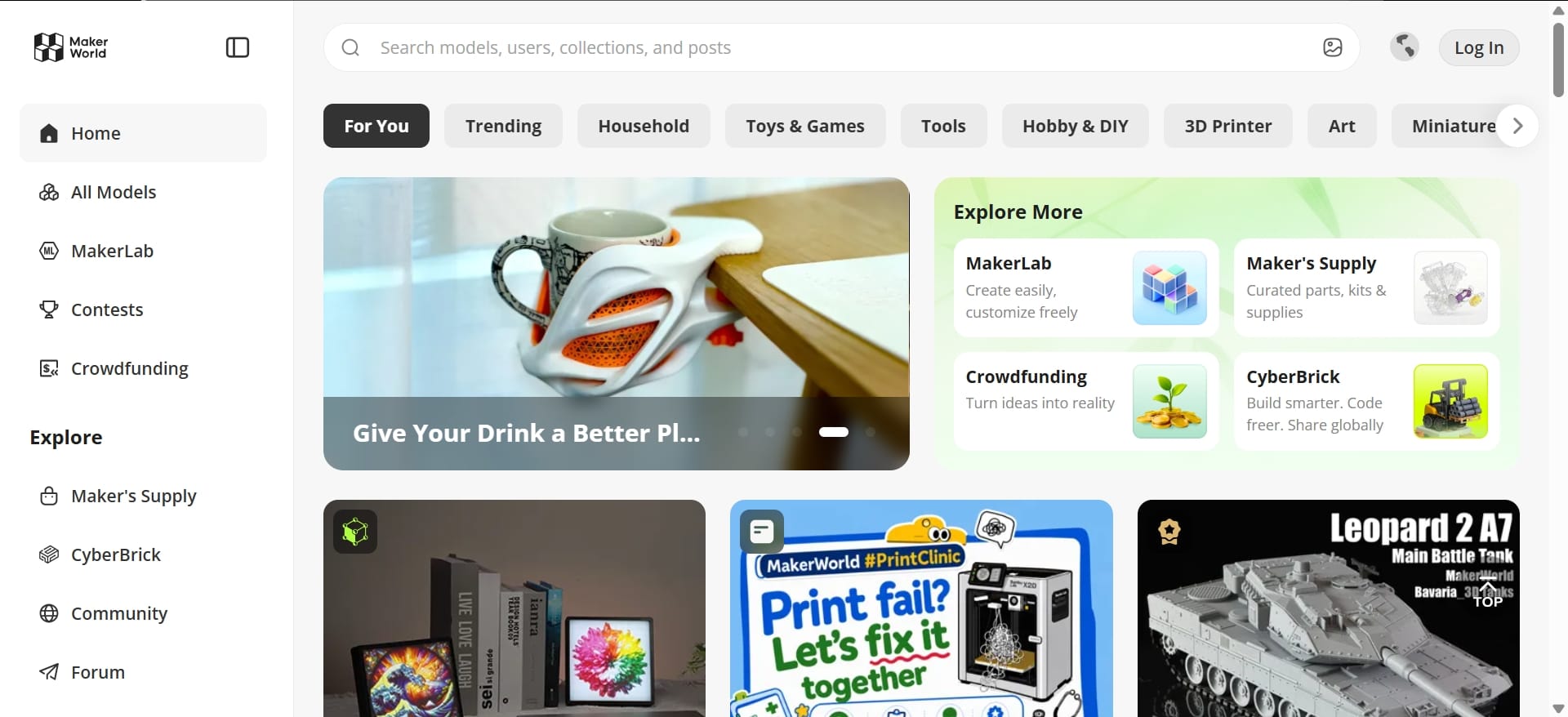
URL: https://makerworld.com/en
Best for: trending models and active creator community
MakerWorld is created by Bambu Lab and has quickly grown into one of the largest free 3D model platforms, with over 2 million free models available for download. It integrates deeply with Bambu Studio (you can slice files directly without downloading), and the community is extremely active, meaning the latest viral and trending models almost always appear here first.
Strengths: 2 million+ free models, highly active community, new trending designs appear fast, 3MF files with full print settings, design contests with real prizes, seamless Bambu Studio integration.
Weaknesses: strong Bambu ecosystem focus (though files work on any printer).
Thangs
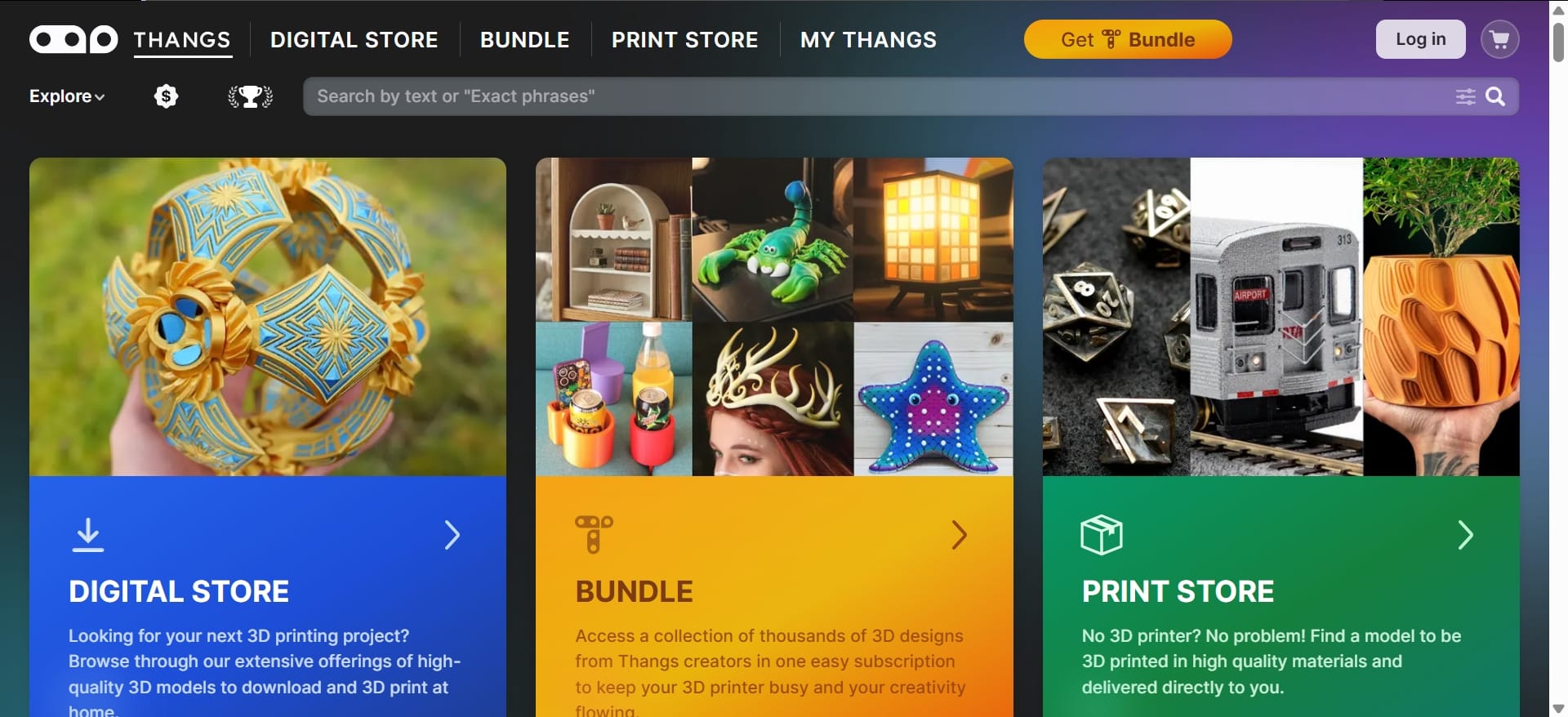
URL: https://thangs.com/
Best for: searching across multiple platforms at once
Thangs works as both a model repository and a search engine that indexes files from other platforms. Its geometric search lets you find visually similar models even if you cannot describe what you want in words.
Strengths: cross-platform search, innovative geometric search, collaboration tools, 3D preview with measurements.
Weaknesses: smaller own library, some features require paid subscription.
Cults3D
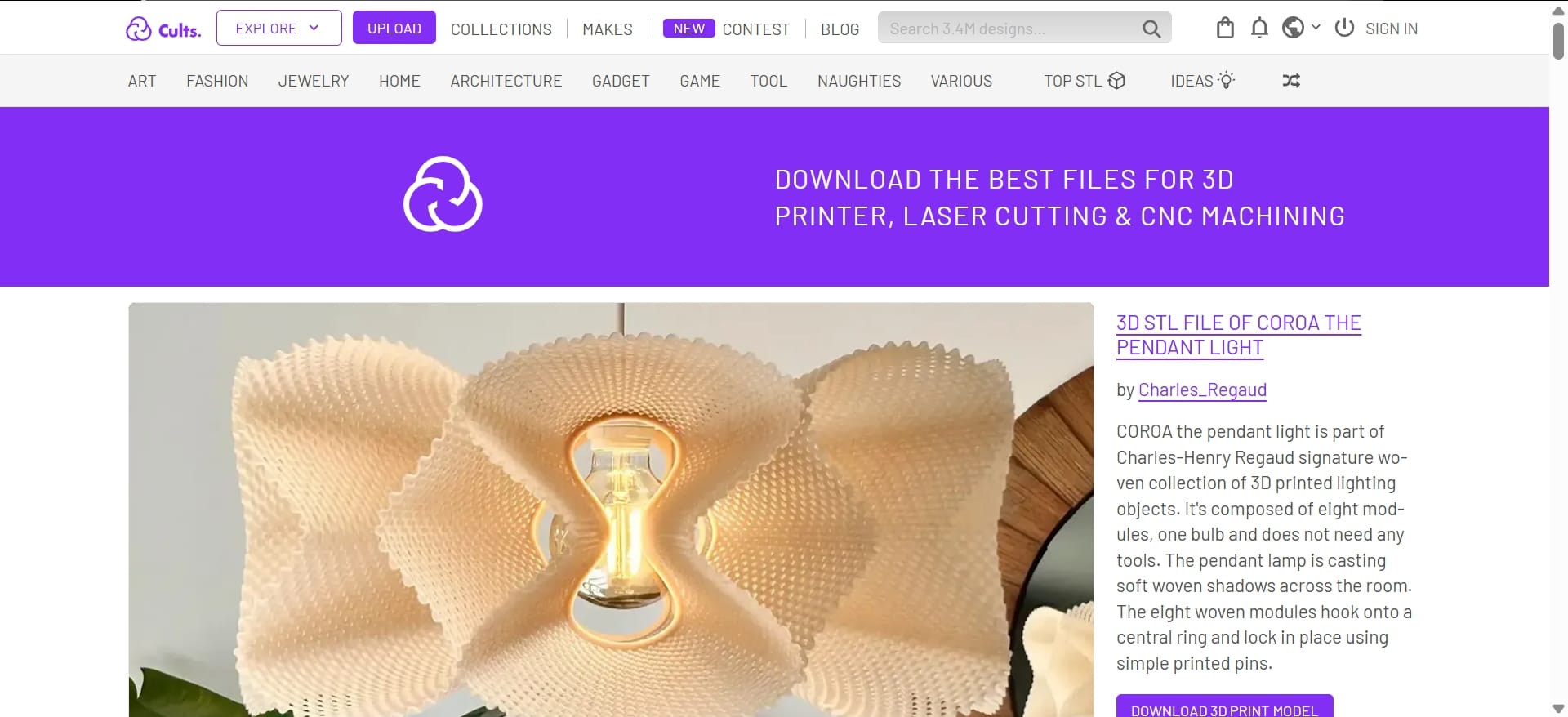
Best for: artistic and creative designs
Cults3D is a French platform with a strong focus on artistic, decorative, and unique designs. It mixes free and paid models, with many professional designers offering both.
Strengths: high-quality artistic models, wide variety of formats, supports designers financially, active community.
Weaknesses: free section is smaller than paid, navigation can feel cluttered with mixed free/premium listings.
MyMiniFactory
URL: https://www.myminifactory.com/
Best for: tabletop gaming miniatures and collectibles
If you print miniatures for D&D, Warhammer, or other tabletop games, MyMiniFactory is your first stop. Every file is tested for printability before being listed.
Strengths: quality-tested files guaranteed to print, extensive miniatures library, designer spotlights, community challenges.
Weaknesses: heavy focus on miniatures (less variety for other categories), growing paid section.
How to Tell If a File Will Print Successfully
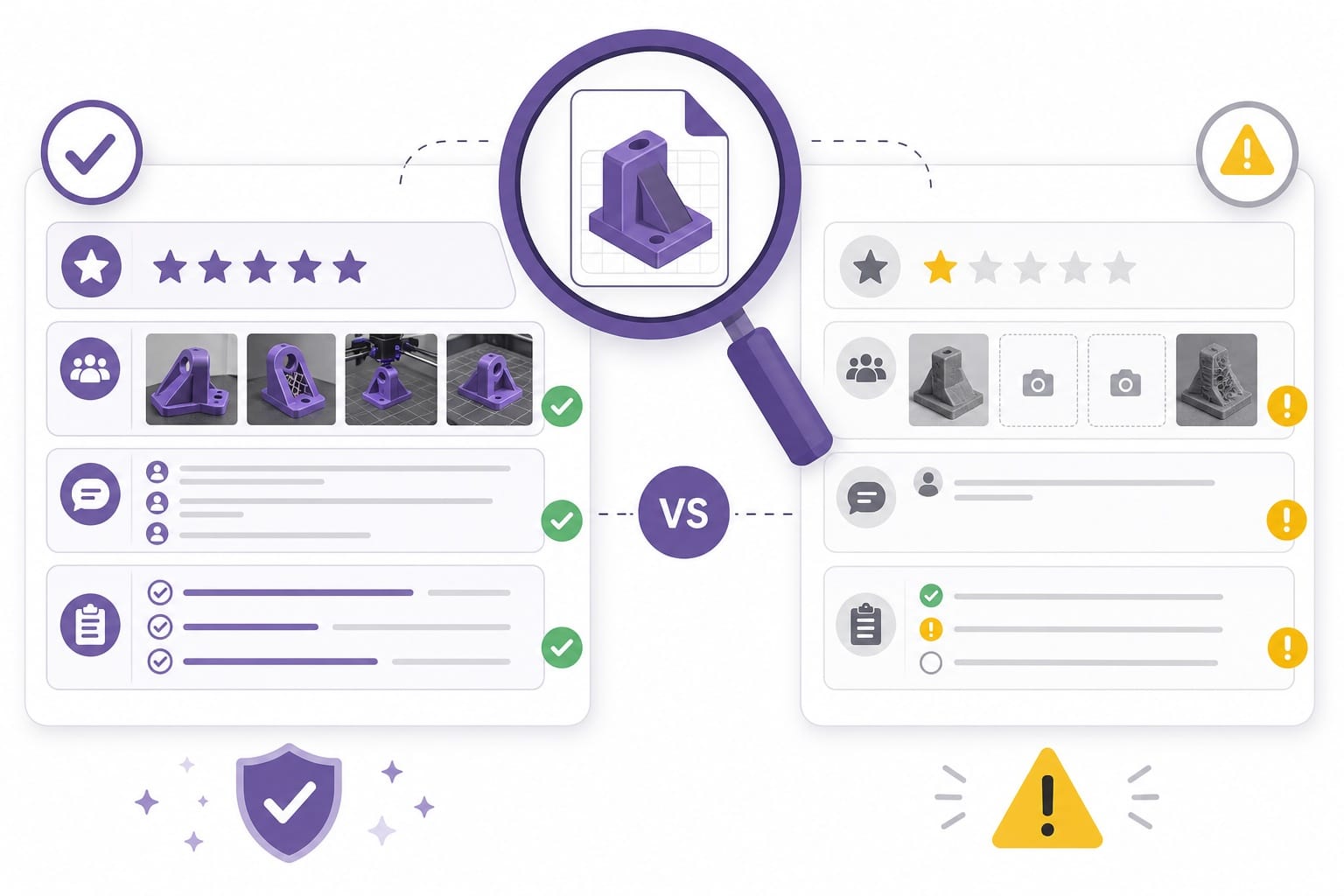
Downloading a file is free. Wasting 8 hours and half a spool on a failed print is not. Here is how to evaluate a file before committing to it:
Check the "Makes" count. On Thingiverse and Printables, users post photos of their successful prints (called "makes"). A file with 500+ makes has been validated by hundreds of real people. A file with zero makes is an unknown risk.
Read the comments. Users report problems: "needed supports on the left arm," "scale to 105% for proper fit," "bridging fails at layer 42." This information saves you from repeating their mistakes.
Look for print settings. Good uploads include recommended layer height, infill percentage, print speed, and whether supports are needed. Files missing this info require you to guess, which often means trial and error.
Preview the geometry. Most platforms have a 3D viewer. Rotate the model and look for extreme overhangs (angles greater than 45 degrees without support), very thin walls (under 1mm), or tiny details that your nozzle cannot resolve.
Check the file size. An STL file under 1KB is probably broken. An STL over 200MB might crash your slicer or be needlessly detailed for FDM printing.
How to Use a Downloaded 3D Print File
You have found a great file. Now what? Here is the step-by-step workflow from download to print:
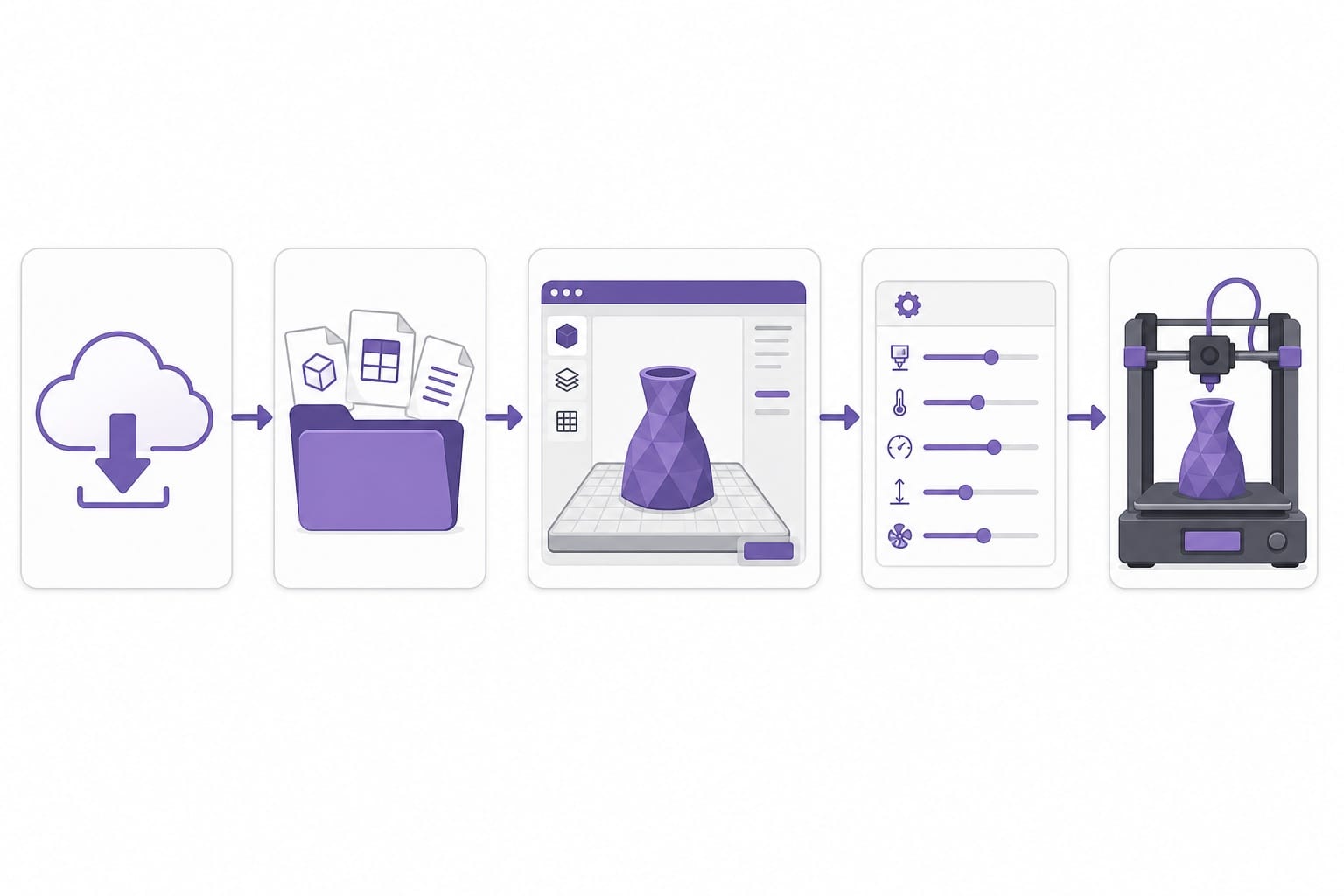
Step 1: Download and extract. Most files come as a ZIP containing one or more STL/3MF files plus a readme. Extract them to a folder you can find later.
Step 2: Open your slicer. Launch Cura, PrusaSlicer, Bambu Studio, or whichever slicer matches your printer. Drag the file in or use File → Import.
Step 3: Position and scale. The model appears on a virtual build plate. Check that it fits within your printer's build volume. Adjust orientation if needed (flat surfaces go down for best bed adhesion).
Step 4: Configure settings. Choose your layer height (0.2mm is a good default), infill (15-20% for decorative, 40%+ for functional), and enable supports if the model has overhangs.
Step 5: Slice and send. Hit "Slice," review the preview (layer-by-layer view catches problems early), then send to your printer via USB, SD card, or Wi-Fi.
We are preparing a full slicing tutorial that walks through each setting and what it does to your print quality.
Search Tips: Finding the Right File Faster
With millions of free 3d files available, finding the exact thing you want can feel like searching for a needle in a haystack. These tips help:
Be specific in your search terms. "Dragon" returns 50,000 results. "Articulated dragon fidget toy print in place" returns exactly what you want.
Sort by "Most Makes" or "Most Downloaded." This surfaces battle-tested files that the community has validated through actual printing.
Browse "Collections." Most platforms let users create themed collections. Someone has probably curated "best desk organizers" or "best articulated animals" already, saving you hours of browsing.
Check designer profiles. Found one good file from a designer? Check their full profile. Good designers tend to consistently produce good files.
Legal Rules for 3D Print Files
Just because a file is free to download does not mean you can do anything with it. Here is what you need to know:
Creative Commons Licenses (Most Common)
Most free 3D print models use Creative Commons licenses. Here is what each means in plain English:
- CC BY: You can use it for anything, even sell prints, as long as you credit the designer.
- CC BY-SA: Same as above, but if you modify the design, your version must use the same license.
- CC BY-NC: You can use and modify it, but NOT for commercial purposes. You cannot sell prints of this model.
- CC BY-NC-ND: No commercial use AND no modifications. Print it as-is for personal use only.
What You Can Typically Do
- Print any free file for personal use (decorations, gifts, household items)
- Modify files for your own use
- Share your prints on social media (always credit the designer as a courtesy)
What Can Get You in Trouble
- Selling prints of CC BY-NC models. This violates the license and designers do file takedown notices.
- Selling prints of copyrighted characters. Printing a Baby Yoda for yourself is tolerated. Selling Baby Yoda prints on Etsy will get you a cease-and-desist letter from Disney's lawyers.
- Claiming someone else's design as your own. Reposting a model without credit violates most licenses.
The Simple Rule
For personal use, you are fine with virtually any free file. The moment you want to sell prints commercially, check the license carefully. When in doubt, contact the original designer.
What to Do When a File Will Not Print
Sometimes a downloaded file looks great in the preview but fails during printing. Common causes and fixes:
Problem: slicer shows errors or "non-manifold edges."
Fix: use the automatic repair feature in PrusaSlicer (File → Fix STL) or Windows 3D Builder (free, automatically repairs on import). Meshmixer is another free tool for manual mesh repair.
Problem: model is impossibly small or gigantic.
Fix: the file was designed in different units. Scale it in your slicer (try 2540% if it seems microscopic, or divide by 25.4 if it seems enormous). This happens when files were created in inches but your slicer expects millimeters.
Problem: parts of the model print mid-air with no support.
Fix: enable supports in your slicer, or rotate the model to minimize overhangs. Check if the designer included a "pre-supported" version in the download.
Problem: print fails partway through with no obvious reason.
Fix: check comments on the model page (others may have reported the same issue), verify your slicer detects no errors in the layer preview, and try slicing with different settings (lower speed, higher temperature).
We will cover 3D print troubleshooting in detail in a future tutorial.
Frequently Asked Questions
Where can I find 3D print files?
The best free 3D printer files are available on Thingiverse (largest library), Printables (highest quality with print settings), MakerWorld (2 million+ free models, very active community where trending designs appear first), Thangs (cross-platform search engine), Cults3D (artistic designs), and MyMiniFactory (gaming miniatures). All offer free downloads, though some also have paid premium models.
What are the different types of 3D print files?
The most common 3D print file formats are STL (universal, geometry only), 3MF (modern standard with colors and print settings included), and OBJ (supports textures, common in resin printing). For FDM printing, choose 3MF when available, otherwise STL. Both work in all major slicing software like Cura, PrusaSlicer, and Bambu Studio.
What are the legal considerations for 3D print files?
Most free 3D print files use Creative Commons licenses. For personal use, you can print virtually anything. For commercial use (selling prints), check the license: CC BY allows commercial use with credit, while CC BY-NC prohibits selling entirely. Never sell prints of copyrighted characters (Disney, Warhammer, etc.) as this is IP infringement regardless of where you downloaded the file.
Are 3D print files really free?
Yes. Platforms like Thingiverse, Printables, and MakerWorld offer millions of genuinely free 3d files for download with no hidden costs. Some platforms (Cults3D, MyMiniFactory) mix free and paid models, but the free sections are clearly labeled. You only pay for filament and electricity to run the print.

Comments ()